Running the Inspections
After you created your first E&I Plan, and approved the Interval (for simplicity, let's say you approved the Inspection tasks for January), when we reach January, the Inspection Tasks will be available and the QA Inspectors of your team can go and start inspecting the tasks.
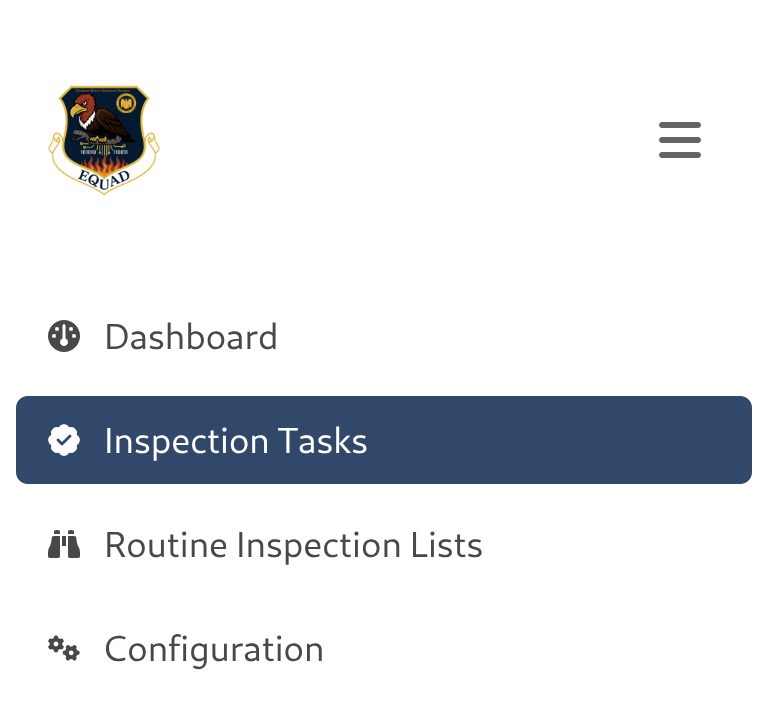
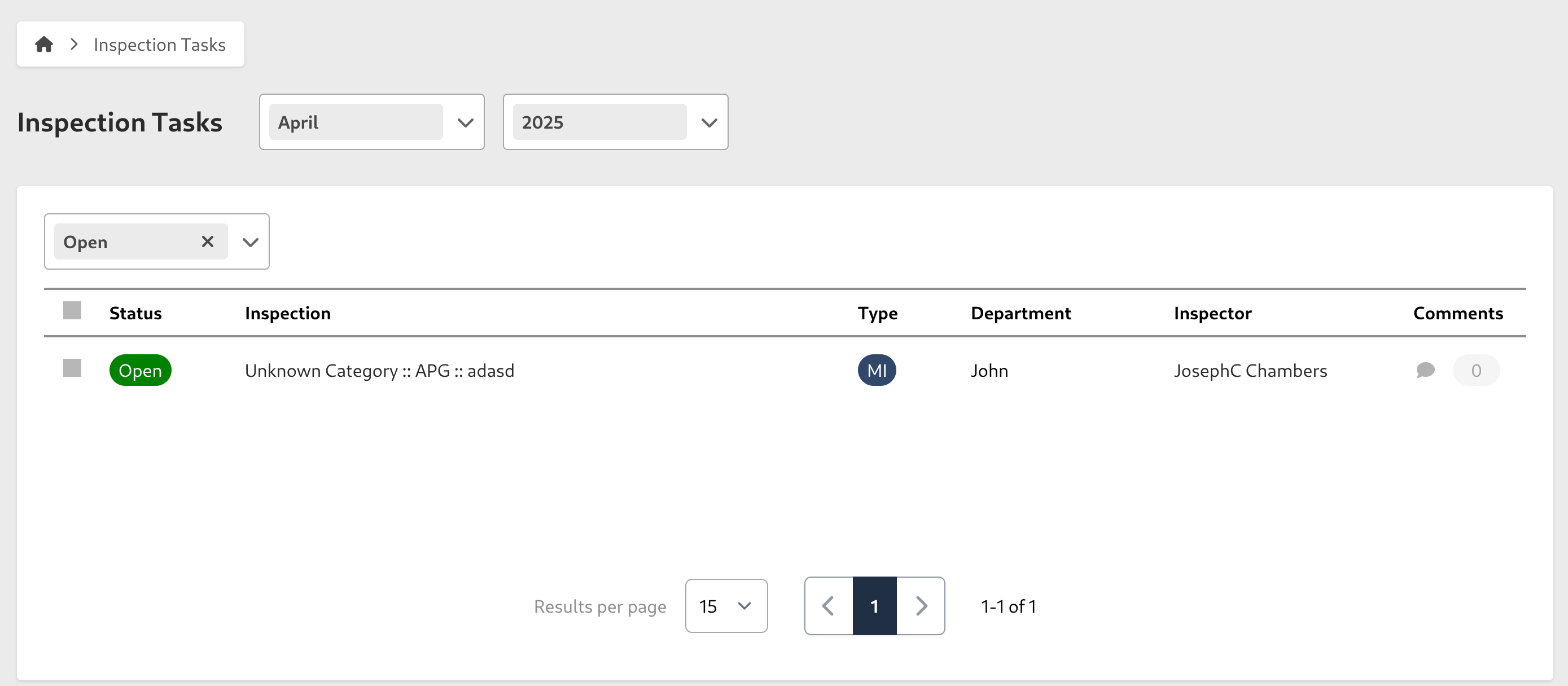
For that, first go to Inspection Tasks, inside you'll see a table with a list of tasks you can work on, by default the shown inspections will be of the current month, but you can change that using the year and month selectors at the top left of the page.
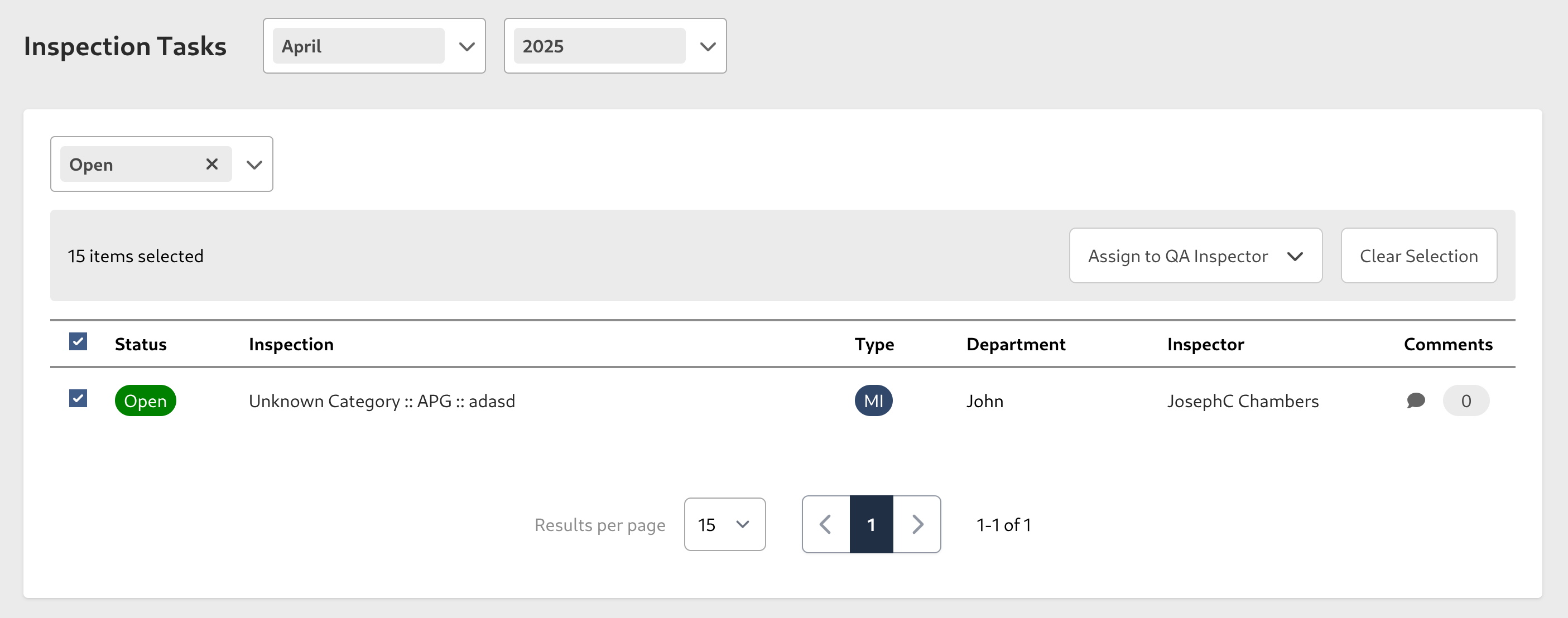
in this page, you can select multiple inspections and appoint the tasks to yourself or to other inspectors.
each task has a comment section, you can click the Comment Icon button to open it, there you can see the comments other Inspectors have left related to the task, and you can leave a comment with your insight
Inspection
click on one of the task in status Open, and you will be redirected to the inspection details page, here you can review the inspection Task and evaluate it, it has all the information the Inspector needs, and at the bottom there's some fields you need to fill to complete the inspection.

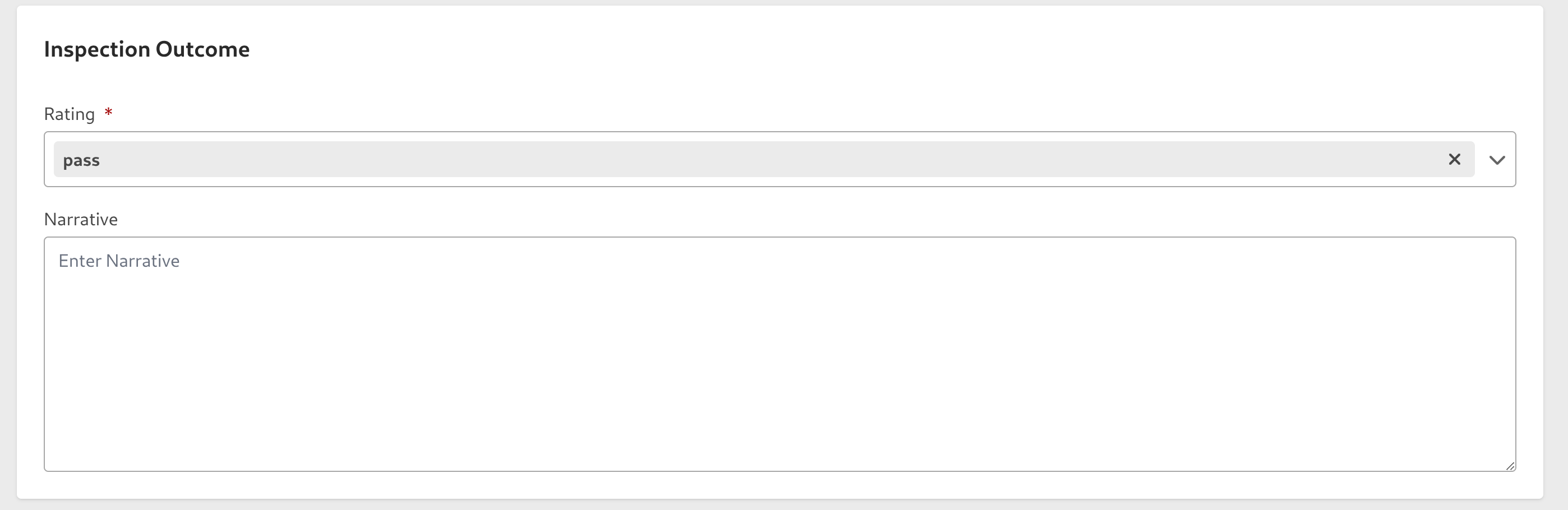
Inspection Outcome
- Rating (required) - it can be fail or pass
- Narrative (required) - add your observations about this inspection
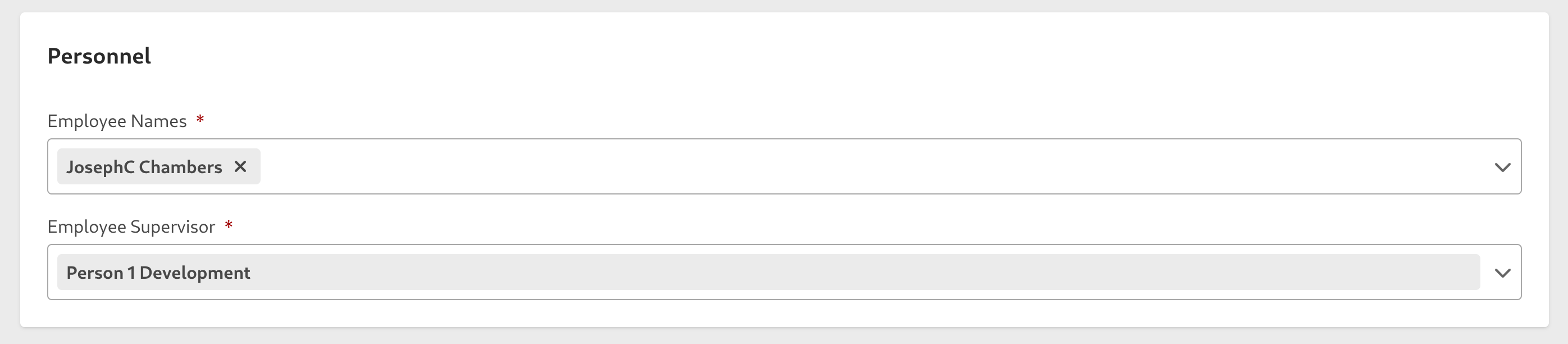
Personnel
- Employees (required) - assign people to this task (the selectable people will be from the department of this task)
- Supervisor (required) - assign one Person as the supervisor that will be responsible of this task
Equipment
The equipment used in this task, it can be a known task
- Aircraft Tail Number (required)
- REFDESWUC (optional)

or a not known equipment, for this case, you need to fill in the information
- Equipment ID (required) - identifier of the equipment
- Area (optional)
- Location (optional)

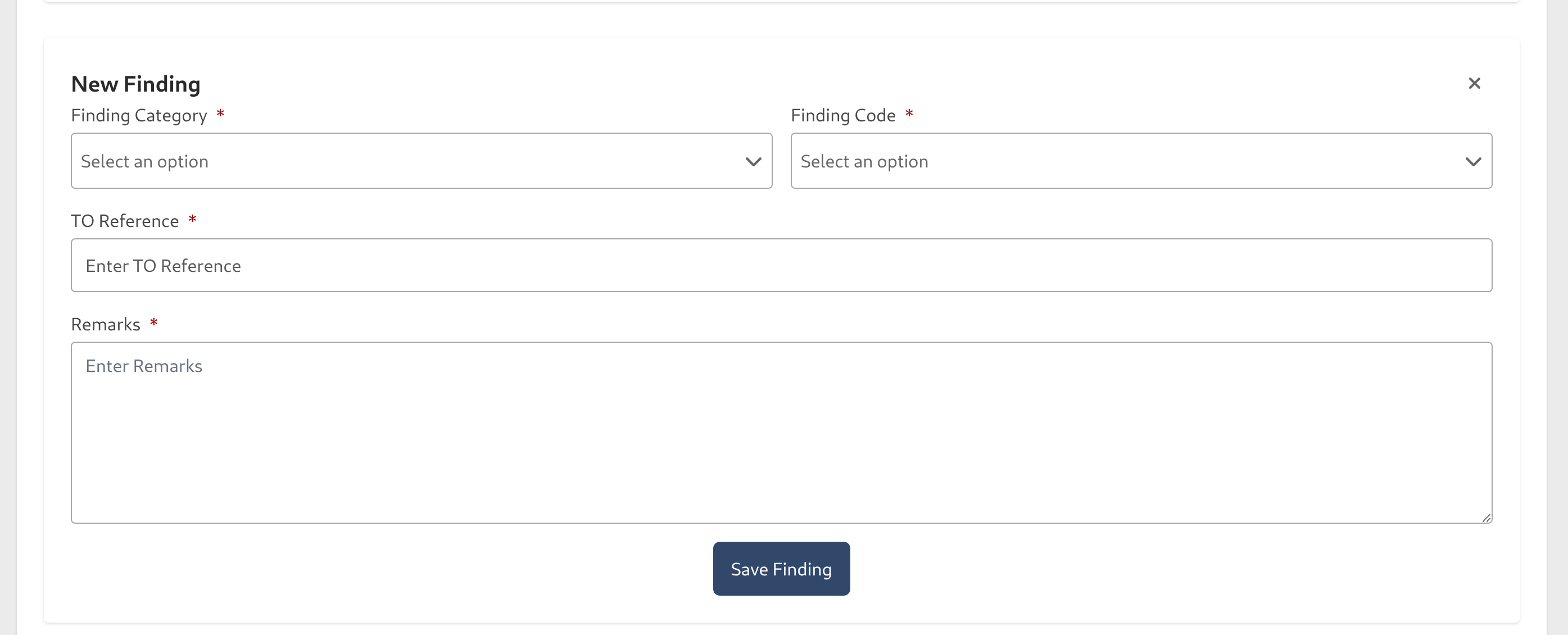
Findings
If you find new findings while inspecting the task, you can register them, enter the following information:
- Finding Category (required)
- Finding Reason (required)
- TO Reference (required)
- Remarks (required)
History
the inspection has its own history as well, where you can see previous inspection outcomes done on this task in the past.
once you're done with your evaluation, click on the Save draft button, it will redirect you back to the Inspections Page and you can work on other tasks, or you can press on the Send for Chief Inspector evaluation so the Chief Inspector of your organization reviews the Inspection
Once the period of the Inspection Plan Task finishes, you will still be able to see the task details page, but you won't be able to make changes on it, take that into consideration when you work on this!