Finding Reasons
Finding Reasons are reason codes that inspectors apply to findings to identify the primary cause, supporting root cause analysis. Examples include inadequate training or lack of awareness.
Go to Configuration > Finding Reasons to manage your Finding Reasons. You'll need the appropriate access role to add, edit, or remove a Finding Reason.
Add a Finding Reason
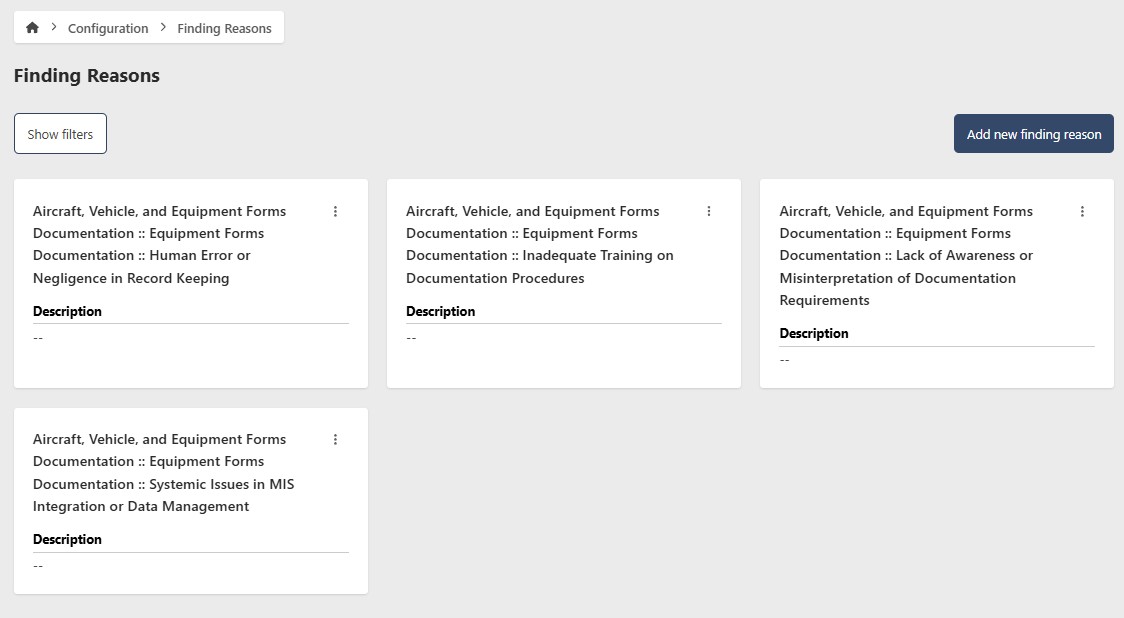
- Go to Configuration > Finding Reasons
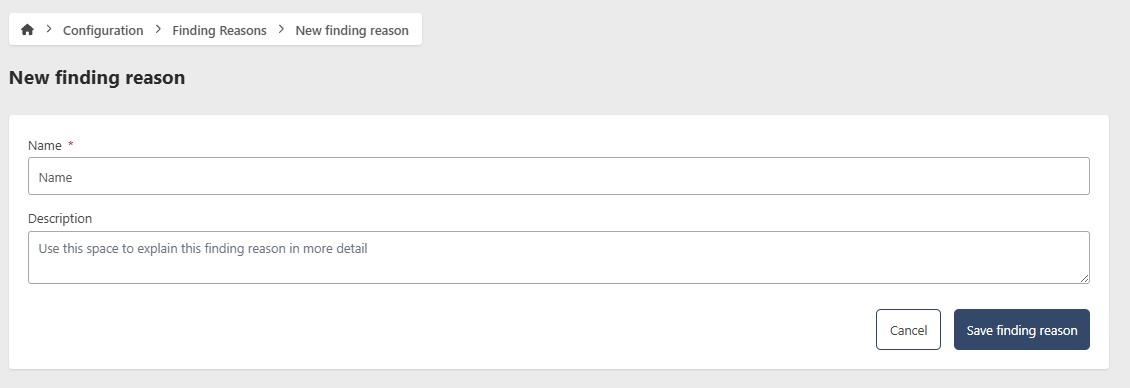
- Click Add new Finding Reason
- Enter the following information:
- Name (required)
- Description (optional)
- Click Add new Finding Reason
Edit a Finding Reason
- Go to Configuration > Finding Reasons
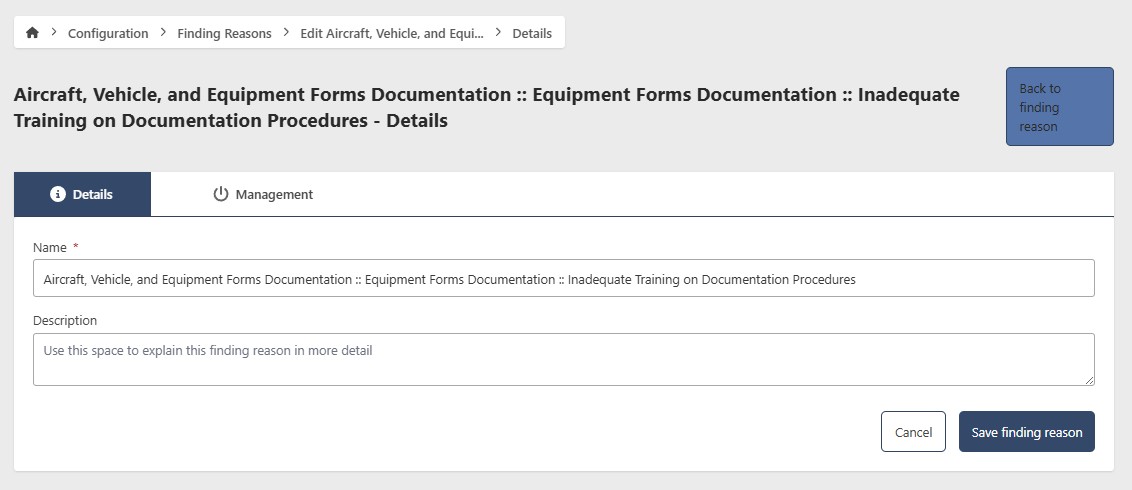
- Click the contextual menu (⋯) next to the Finding Reason and click View Finding Reason
- Click Edit
- Update the following fields as needed:
- Name (required)
- Description (optional)
- Click Save Finding Reason
Remove a Finding Reason
- Go to Configuration > Finding Reasons
- Click the contextual menu (⋯) next to the Finding Reason and click View Finding Reason
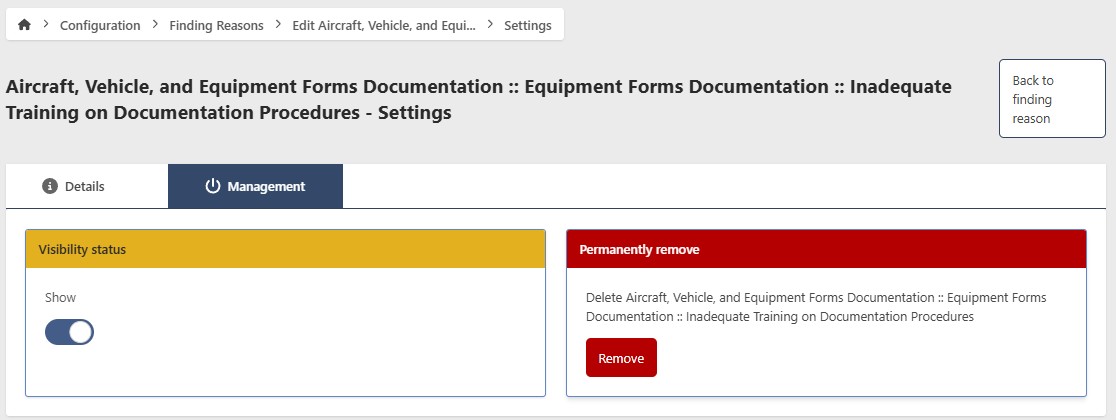
- Click Edit, then go to the Management tab
Hide a Finding Reason
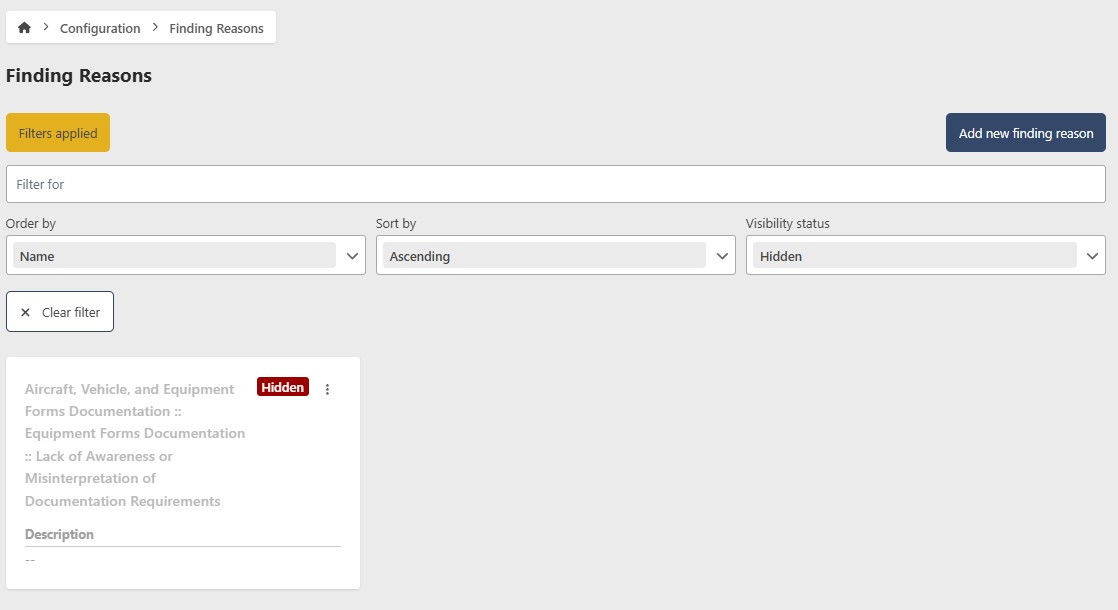
To temporarily hide an Finding Reason without deleting it, toggle Show/Hide to Hide. To restore it, filter by Hidden status, open the Finding Reason, and toggle Show/Hide back to Show.
Permanently remove a Finding Reason
caution
This action cannot be undone. Consider hiding the Finding Reason instead if you may need it in the future.
- Click Remove
- Click Yes to confirm