Introduction to Roles

Listing of Roles

Here, you'll manage Roles for EQuAD users. Each Role comes with unique, adjustable permissions that control access to different EQuAD screens and features. While a few core Roles are locked and can't be changed, you can modify unlocked Roles via their permissions tab. You can also create custom Roles to fit your organization's specific needs

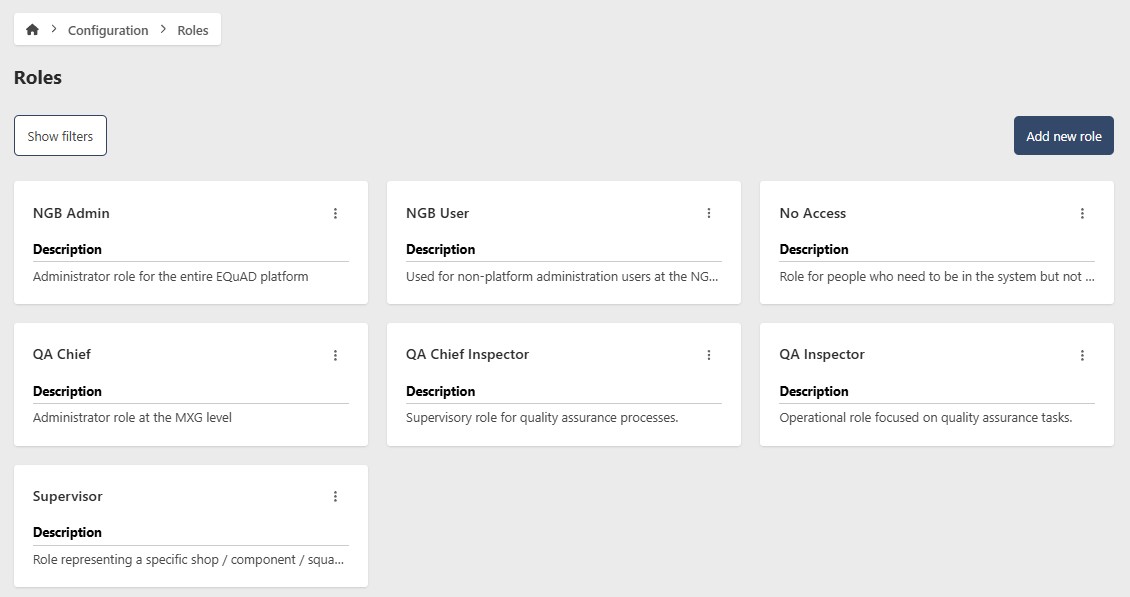
You can find your organization's Roles on the configuration page at Configuration > Role.

tip

If you don't see the configuration option you're looking for, it may not be available with your current permissions, make sure you have the necessary permissions for the resource you're trying to access.

There, you can view a list of all your Roles and its information.

Role Listing

This view has filter controls that allow you to filter and sort the list of Roles by various criteria

Role Filter Controls

  • Search: You can filter by the name of the Role
  • Order by: Select by which field you want to order the Role list
  • Status: Select the status of the Role you want to show
  • Sort By: Select the sort order (ascending or descending) of the Role list

You can click the Clear Filters button to remove all filters and show the default Role list again.

Contextual Menu

You can use the Contextual Menu to perform actions on the Roles in the list. This menu is available by clicking on the three dots icon next to each Role in the list.

Role Contextual Menu

  • View Role: takes you to the details of the selected Role
tip

note that not all the options from the contextual menu will be shown at a time some requires you to have certain permissions to perform the action, and some others will be shown depending on the status of the Role

Details

in the listing page, upon clicking on one of the Role card, you will be taken to the Role details page, where you can see the information of the Role and its related information.

Role Details Page

Role Edit Page

Other resources of interest