RILs
A RIL is an internal document generated by the Air Force, MAJCOMs, or various units that details routine inspections subordinate units must conduct. EQuAD provides tools for developing and administering RILs. Access to these management capabilities is restricted to users with a MAJCOM-level role, though other users may view RILs in read-only mode.
RILs move through four statuses: Draft (in development), Scheduled (published but not yet active), Active (currently in effect), and Superseded (archived).
When developing new RILs, users have access to pass rate data from previous inspection cycles to inform future requirements. Wings can also supplement the Master RIL with their own requirements using Local RILs.
Create a RIL
You can create a new RIL from scratch or by cloning an existing one.
Create from scratch

- Go to RILs in the main menu
- Click Add new RIL
- Enter the following information:
- Name (required)
- Description (optional)
- Effective Date (required) — the RIL automatically becomes Active on this date after publishing
- Click Save

- From the contextual menu of the newly created RIL, click View Inspections
- Click Add new inspection and enter the following information for each inspection item:
- Inspection Category (required)
- Inspection Area (required)
- Name (required)
- Description (optional)
- Frequency (required)
- AQL (required)
- Is Ratio Based (optional) — enable for multi-item inspections such as forms or tools
- Number of Items to Inspect (required if ratio based)
- Apply only to these Mission Design Series (optional) — leave blank to apply to all MDS
- Repeat for each inspection item you want to add
Turn on the Create more toggle before clicking Save to keep the form open and add your next inspection item right away, instead of returning to the RIL page each time.

Once all inspection items are added, publish the RIL to make it available to wings. See Publish a RIL below.
Clone an existing RIL
You can't clone a RIL if an existing one is in Draft status. Finalize or remove any drafts before cloning.
- Go to RILs in the main menu
- Click the contextual menu (⋯) next to the RIL you want to duplicate and click Clone
The new RIL will appear with "Cloned" appended to its name, briefly showing a Cloning status while it's prepared. Once cloning finishes, update the Name, Description, and Effective Date, and revise the inspection items as needed.
Publish a RIL
Publishing a RIL locks it, preventing further modifications. Its status changes to Scheduled and it automatically becomes Active on its effective date. Once published, wings can use it to build their E&I Plans.
Publishing and activating a RIL both notify Tenant Admins and QA Chief Inspectors. See Notifications for details.
- Go to RILs in the main menu
- Click the contextual menu (⋯) next to the RIL and click Publish
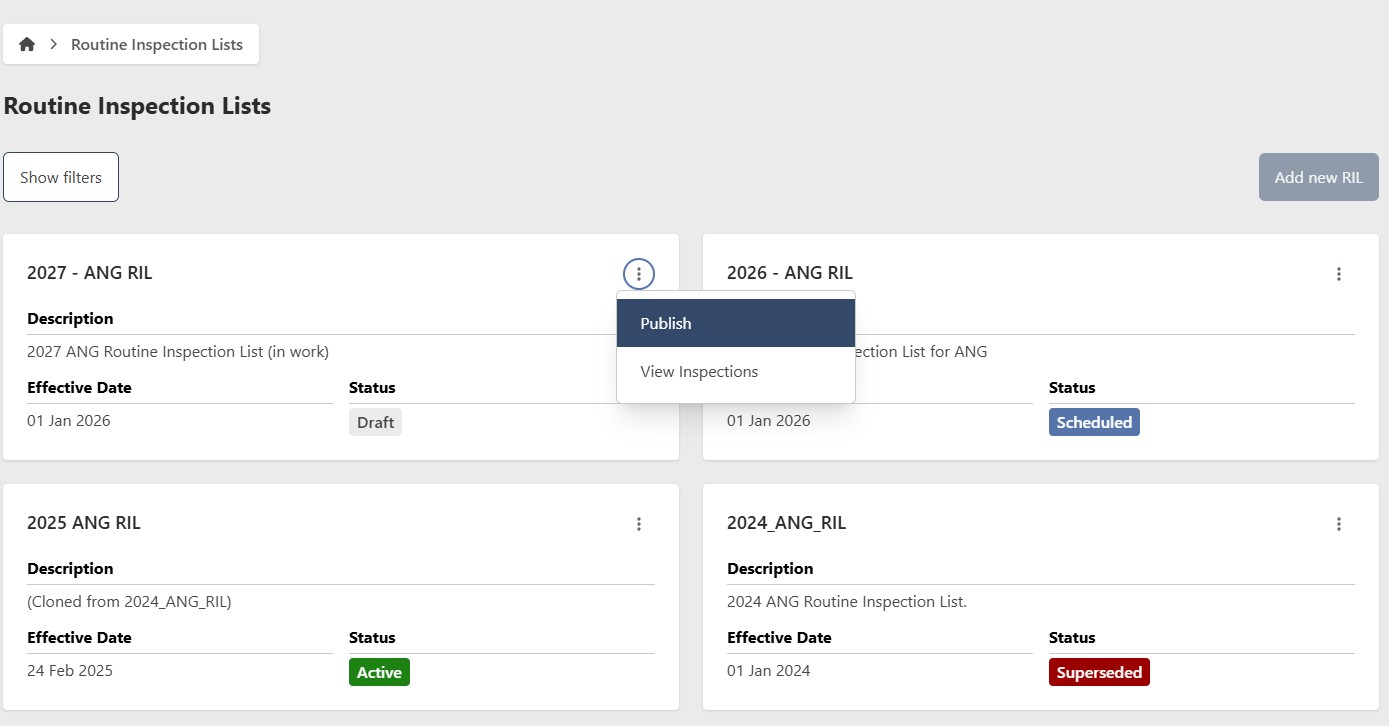
To make changes after publishing, click Unpublish from the contextual menu to return the RIL to Draft status.
Edit a RIL
You can edit a RIL's core details or its individual inspection items. Inspection items can only be added or updated when the RIL is in Draft status.
Edit core details
- Go to RILs in the main menu
- Click the RIL card to open its details page
- Click Edit
- Update the following fields as needed:
- Name (required)
- Description (optional)
- Effective Date (required)
- Click Save

Edit inspection items
-
Go to RILs in the main menu
-
Click the contextual menu (⋯) next to the RIL and click View Inspections
-
From each inspection's contextual menu, select one of the following:
- Edit Inspection — modify the inspection's details
- Deactivate — hide the inspection. Hidden inspections won't appear in the published RIL
- Delete Inspection — permanently remove the inspection
Remove a RIL
- Go to RILs in the main menu
- Click the RIL card to open its details page
- Click Edit, then go to the Management tab

Hide a RIL
To temporarily hide a RIL without deleting it, toggle Show/Hide to Hide. To restore it, filter by Hidden status, open the RIL, and toggle Show/Hide back to Show.

Permanently remove a RIL
This action cannot be undone. Consider hiding the RIL instead if you may need it in the future.
- Click Remove
- Click Yes to confirm