Remove an Existing Finding Reason
To update a Finding Reason, first locate the item on the Finding Reason configuration screen. Select the View Finding Reason in the contextual menu of the Finding Reason you want to update. Use the filter option at the top of the page to search for and find the item more easily.
The instructions below assume you have an Access Role that allows you to perform these actions. If you aren't able to follow the instructions as written, please check with your Admin to make sure you have the correct access.
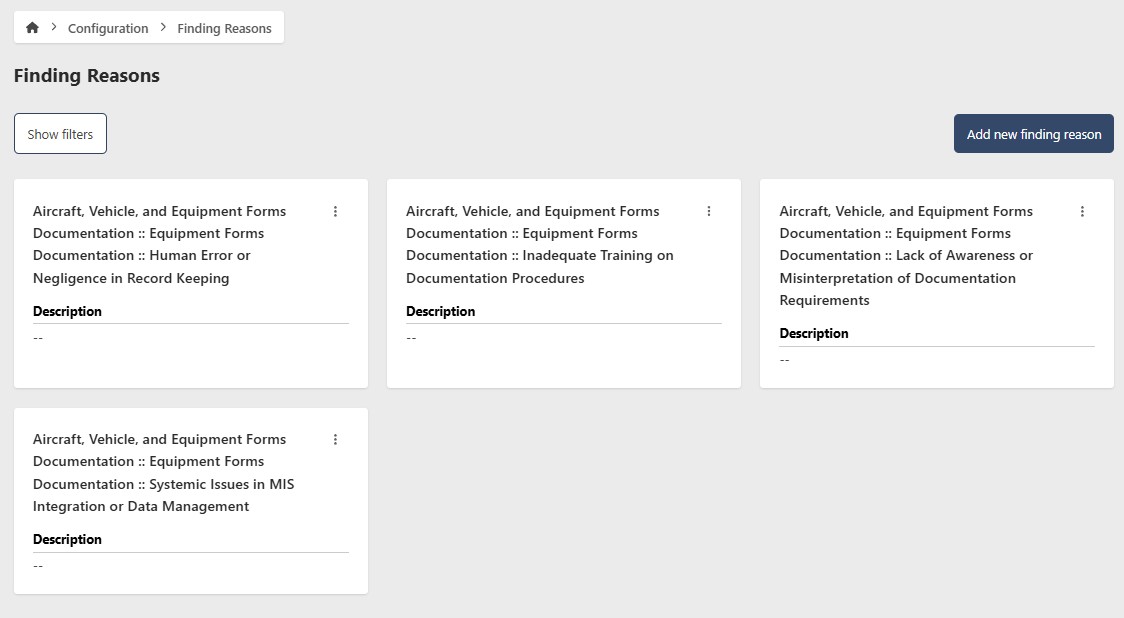
Select the Edit Finding Reason button.
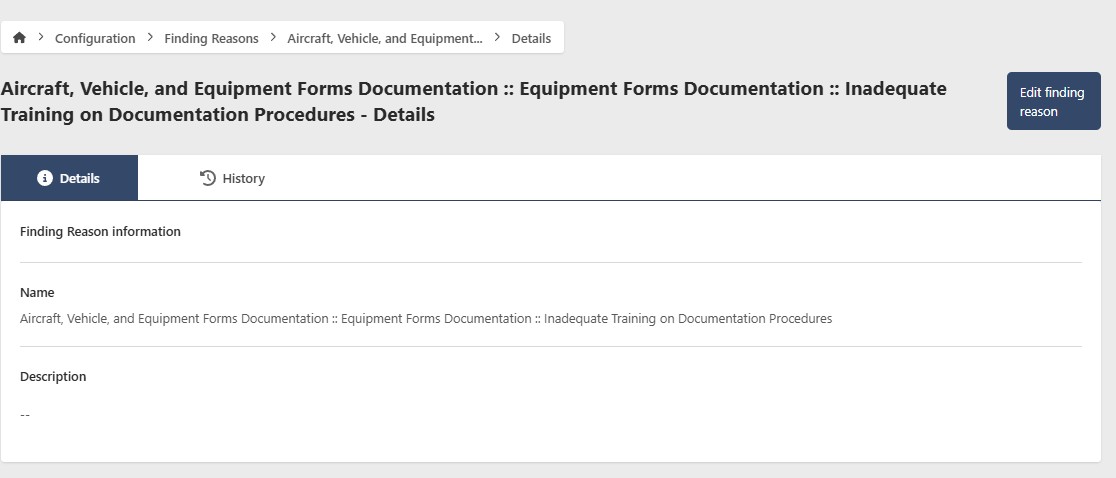
In edit mode, the Management tab becomes visible. Selecting it provides the following options:
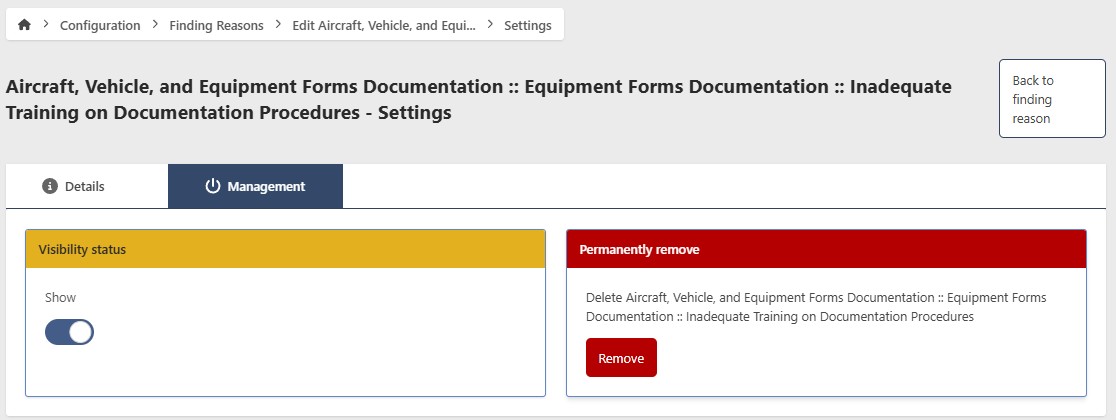
The Management Tab
- Visibility Status
- Permanently remove
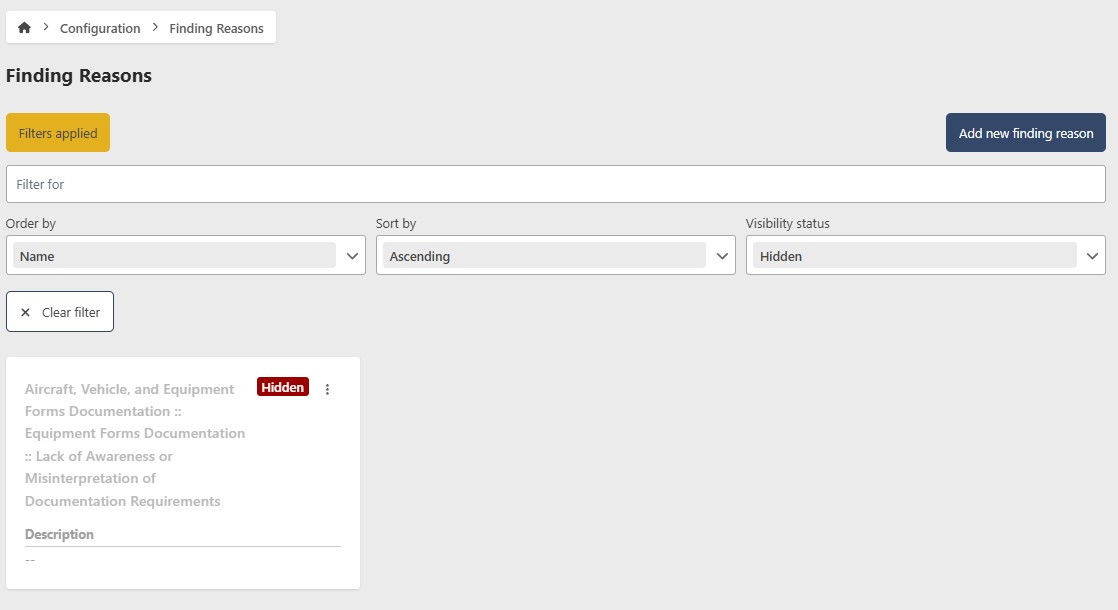
This feature allows you to temporarily hide a Finding Reason from EQuAD screens without permanently deleting it. This is useful for a Finding Reason that is temporarily unavailable. To hide a Finding Reason, toggle the Show/Hide button to Hide. To restore its visibility, use the Show filter button, select Hidden in the Visibility status option, enter edit mode for that MDS, go to the Management tab, and toggle the Show/Hide button to Show
Be careful when removing a Finding Reason, this is a permanent action and cannot be undone. If you are not sure, consider disabling the Finding Reason instead!
To permanently delete a Finding Reason, click the red Remove button. A confirmation warning will appear; click the Yes button to proceed with the permanent removal. This action cannot be undone.