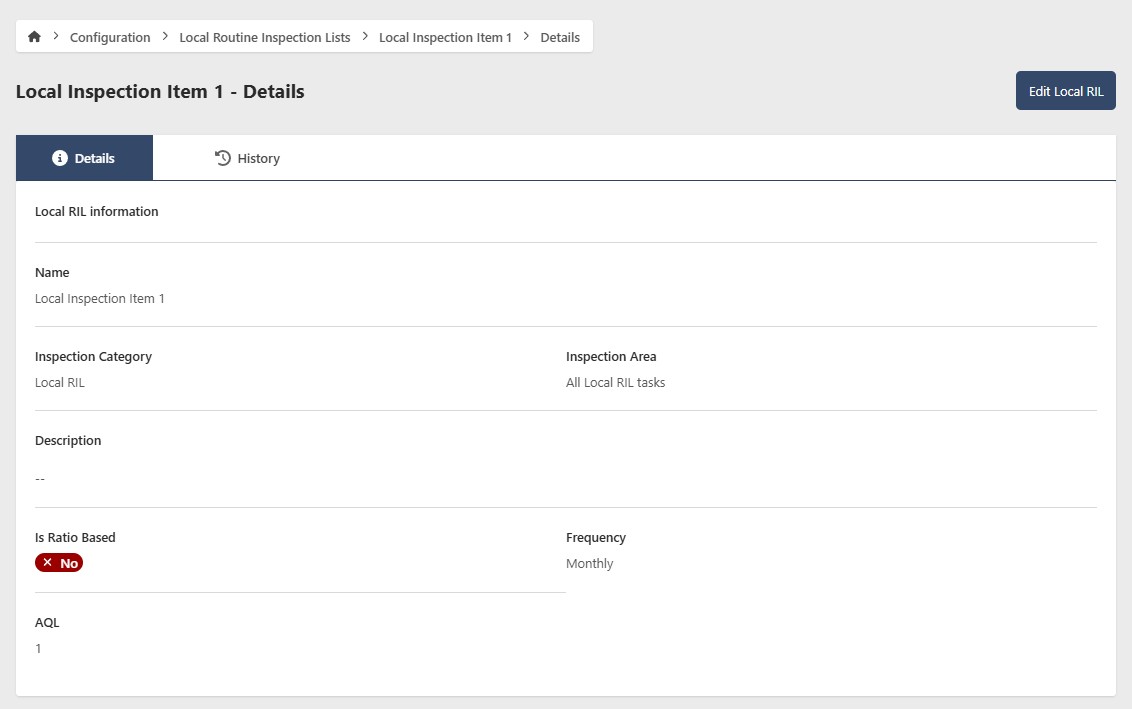
Local RILs
Local RILs are inspection requirements that are unique to a specific Wing. They let your Wing add requirements beyond the RIL. New Local RIL items won't affect a current E&I Plan, but will be included in the next plan you generate.
Go to Configuration > Local RILs to manage your Local RILs. You'll need the appropriate access role to add, edit, or remove a Local RIL.
Add a Local RIL
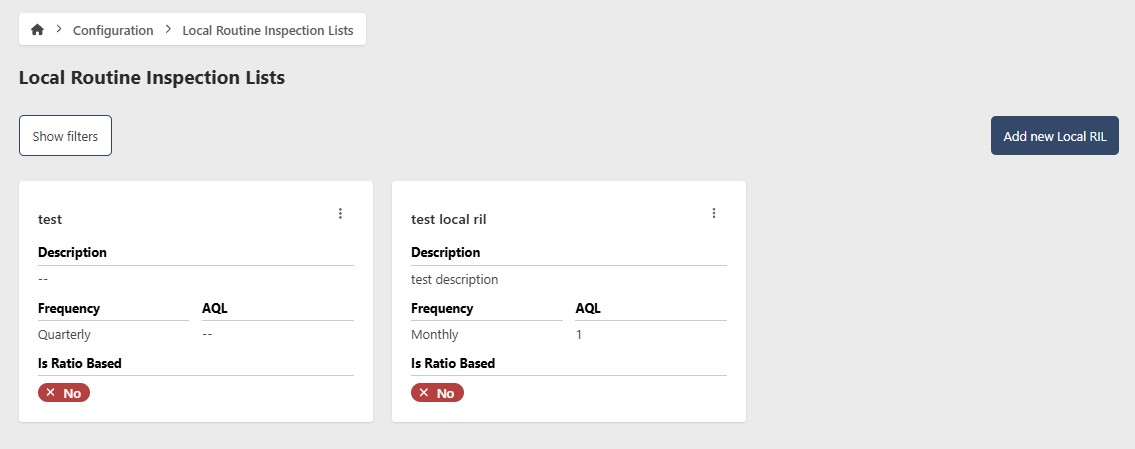
- Go to Configuration > Local RILs
- Click Add new Local RIL
- Enter the following information:
- Inspection Category (required) — this is read-only and defaults to the category set in your tenant configuration
- Inspection Area (required) — the available options come from the selected Inspection Category. Currently the only option is "All Local RIL Tasks"
- Name (required)
- Description (optional)
- Frequency (required) — how often this inspection should be performed
- AQL (required)
- Is Ratio Based (optional) — enable this for multi-item inspections such as forms or tools
- Number of Items to Inspect (required if ratio based)
- Click Add new Local RIL

Edit a Local RIL

- Go to Configuration > Local RILs
- Click the contextual menu (⋯) next to the Local RIL and click View Local RIL
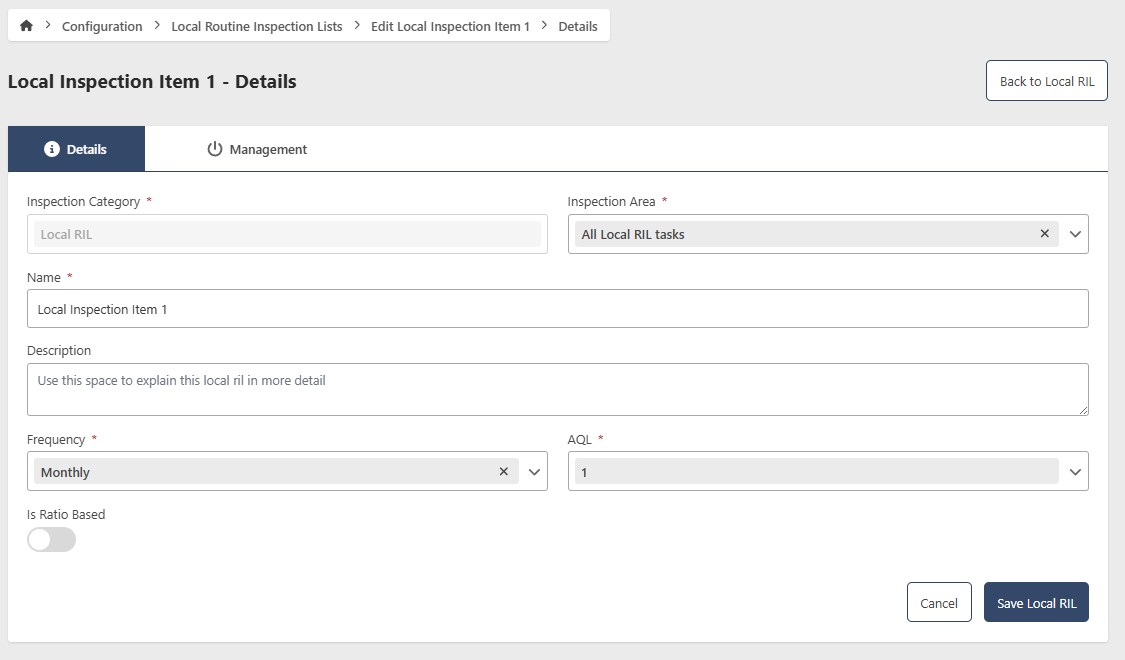
- Click Edit
- Update the following fields as needed:
- Inspection Category (required)
- Inspection Area (required)
- Name (required)
- Description (optional)
- Frequency (required)
- AQL (required)
- Is Ratio Based (optional)
- Number of Items to Inspect (required if ratio based)
- Click Save Local RIL
Remove a Local RIL
- Go to Configuration > Local RILs
- Click the contextual menu (⋯) next to the Local RIL and click View Local RIL
- Click Edit, then go to the Management tab

Hide a Local RIL
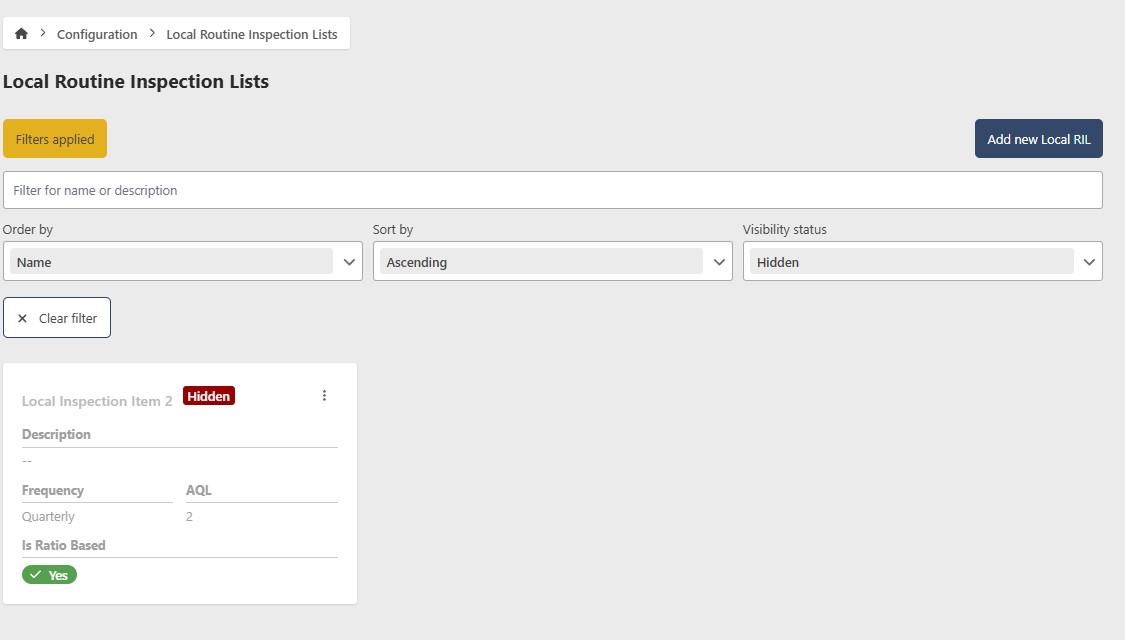
To temporarily hide a Local RIL without deleting it, toggle Show/Hide to Hide. To restore it, filter by Hidden status, open the Local RIL, and toggle Show/Hide back to Show.
Permanently remove a Local RIL
caution
This action cannot be undone. Consider hiding the Local RIL instead if you may need it in the future.
- Click Remove
- Click Yes to confirm