Edit Person Details
To update a Person, first locate them on the Person configuration screen. Click View Person in the contextual menu of the Person you want to update. Use the filter option at the top of the page to search for and find the Person more easily.
caution
The instructions below assume you have an Access Role that allows you to perform these actions. If you aren't able to follow the instructions as written, please check with your Admin to make sure you have the correct access.

Select the Edit Person button.
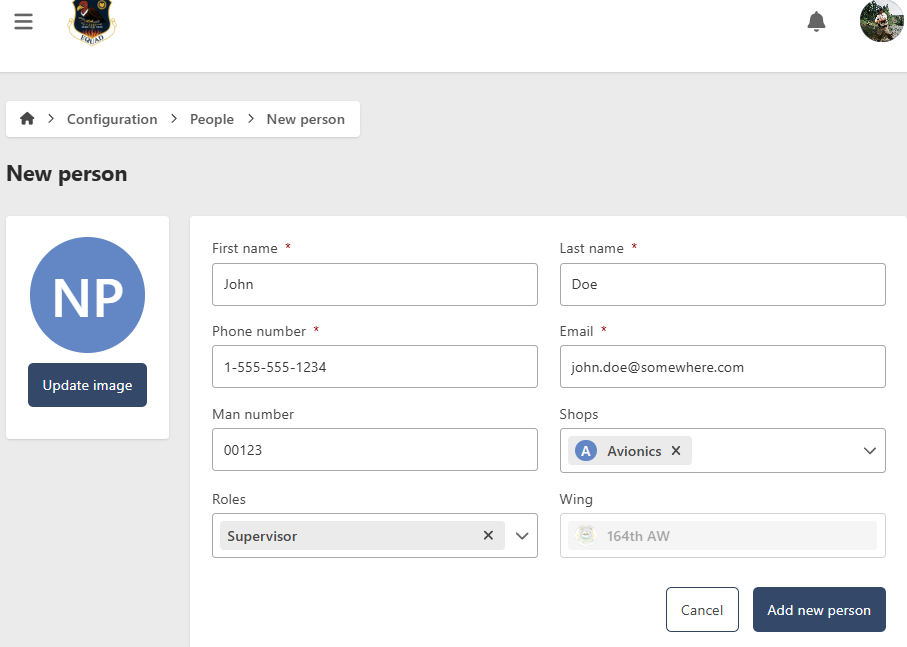
- First Name (required)
- Last Name (required)
- Phone Number (required) - This number can receive notifications from EQuAD if the Person chooses the option under their profile settings
- Email (required) - New users who are added to the system will automatically receive an email. This email will contain a link that allows them to set a password for their new account. Their email address will serve as their username for logging in
- Man Number (optional)
- Shops (optional) - Choose the Shop(s) the Person is assigned to. Select multiple Shops if the Person works in or supervises more than one.
- Role (optional) - You can only choose Roles with fewer permissions than your current Role. Roles with a higher level of access than your own are not selectable. Refer to the Roles configuration section for further information
- Wing (required) - The "Wing" field indicates the assigned Wing of the Person. Typically, it defaults to the Wing of the currently logged-in user, based on their permissions, and is then uneditable
- Update Image (optional) - While a default image is automatically generated, users have the option to upload a different one. Typically, users can later modify this image through their profile settings
When in edit mode, you can make updates similar to adding a Person. After making the updates, click the Save Person button.