Edit Role Details
To update a Role, first locate the item on the Role configuration screen. Select the View Role in the contextual menu of the Role you want to update. Use the filter option at the top of the page to search for and find the item more easily.
The instructions below assume you have an Access Role that allows you to perform these actions. If you aren't able to follow the instructions as written, please check with your Admin to make sure you have the correct access.
You can update or remove the Roles you create, but there are some Roles that are inherent to the system and you cannot edit or remove them, these are the following Roles:
- Tenant Admin
- Business Unit Admin
- QA Chief Inspector
- Department Representative
- Department People
However, aside from the Tenant Admin, the modification of the permissions of these Roles are permitted.

Select the Edit Role button.
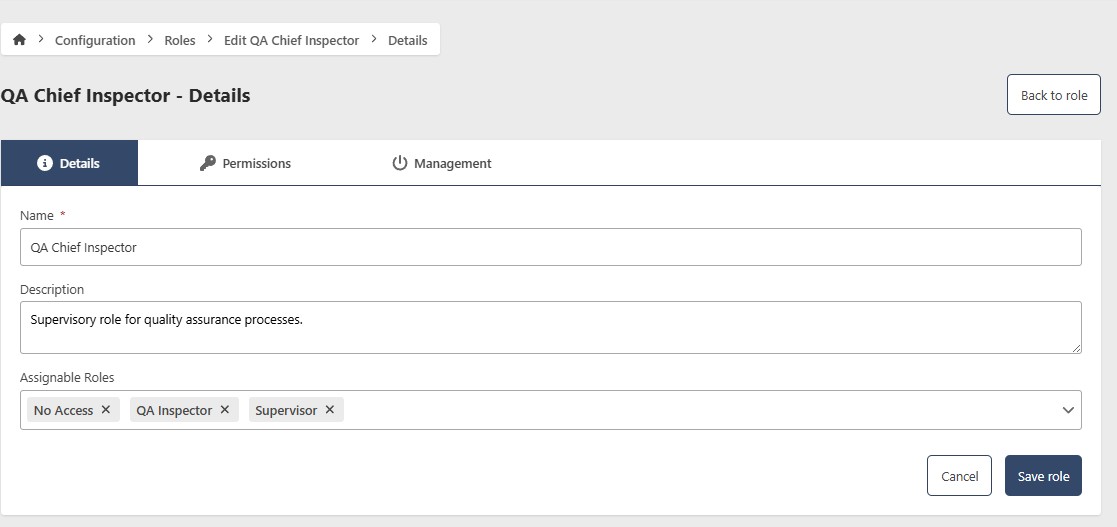
- Name (required)
- Description: (optional)
- Assignable Roles (optional) - You can optionally choose assignable Roles. While your own Role dictates your permissions, Assignable Roles determine which Roles you're authorized to grant to other users. This doesn't change your capabilities; it simply defines the Roles you're trusted to assign when managing users. For instance, an Admin might assign Admin or Manager Roles, a Manager could assign Supervisor or Worker, and a Supervisor could only assign Worker. So, if you're a Manager, you can assign Supervisor or Worker Roles, but not Admin
When in edit mode, you can make updates similar to adding a Role. After making the updates, click the Save Role button.