Location
Introduction to Location
This describes where the Site is located at, a Site can have multiple Location
to reach to Location, go to Configuration > Site, select one Site from the listing
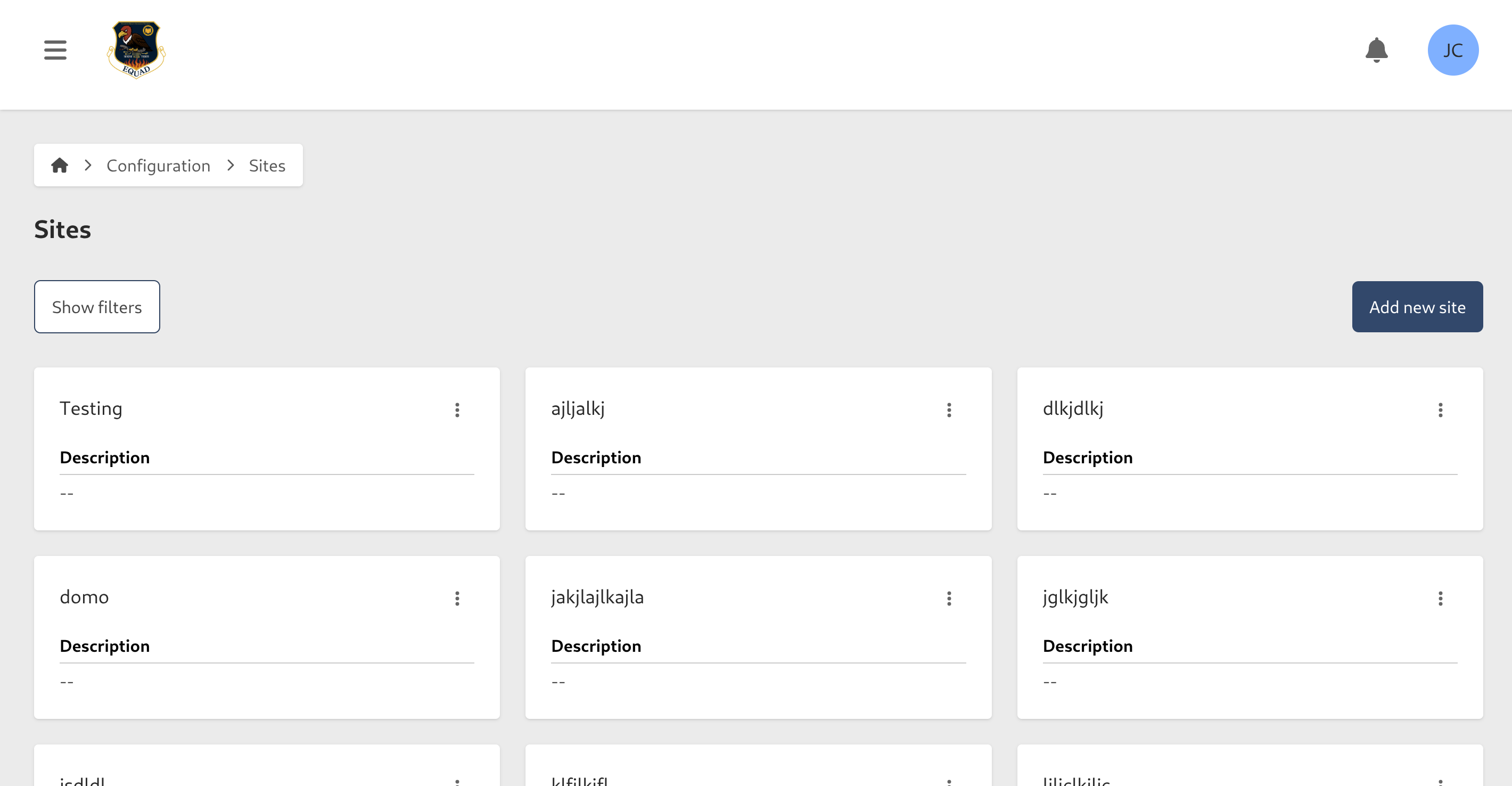
if you want start editing, click the edit Site button, this will redirect you to the editable form of the Site details, click the Location tab once more.

- Active: by default it will be active, if you don't want this Location to be available, disable this option.
- Name: what will this Location be called? (required)
- Location: Describe in more detail the address of this Location (optional)
Add a new Location
To add a new Location, click on Add new Location, this will generate a form with the required fields, fill in the required information.

fill in the required information and click on the checkmark button and the Location will be created
you can click on the X button to cancel the operation
Edit Location Details
To edit an existing Location, click on the edit button at the actions column of the Location you want to update.

change the information and click on the checkmark button and the Location will be updated
Remove an Existing Location
This is an irreversible operation, please proceed with caution
To remove an Location, click on the edit button at the actions column of the Location you want to update.
click on the red trash button and the Location will prompt you to confirm if you are sure about this action, once you confirm one last time, it will delete the Inspection Area
