Add a new Shop
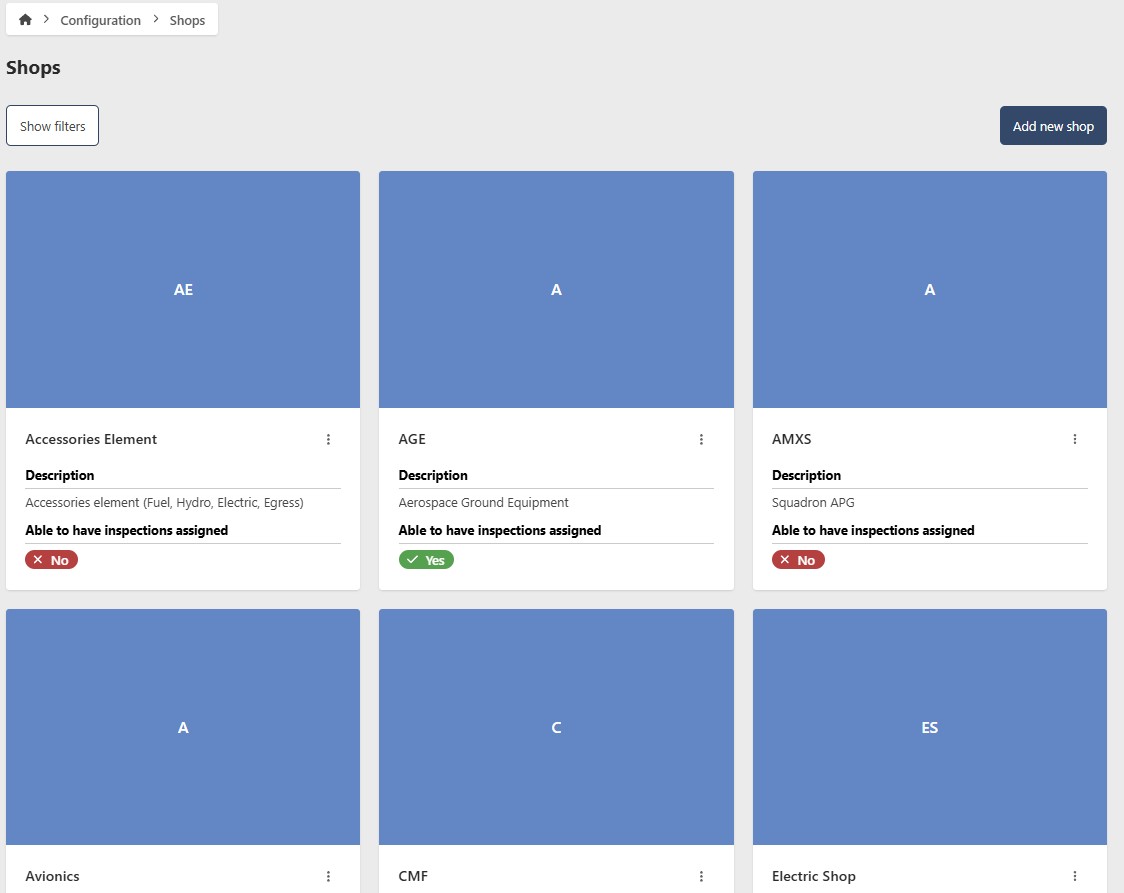
To manage EQuAD Shop, go to the configuration page and click on the Shop button. On this page you may add new Shops or update existing Shops. There is also a filter button available that allows you to more easily search for and sort Shops.
caution
The instructions below assume you have an Access Role that allows you to perform these actions. If you aren't able to follow the instructions as written, please check with your Admin to make sure you have the correct access.
Click on the Add new Shop button.
Enter the following information:
- Name (required) - Enter the name of the Shop
- Description (optional) - Provide an optional description for the Shop, including any relevant details
- Parent Shop (optional) - Assigning a Parent Shop is optional but preferred, as it's used for routing and notification purposes
- Able to have inspections assigned - You can toggle whether a Shop will have inspections assigned to it. Using the example above, shops like Hydraulics, which likely require inspections, contrast with Shops like Accessories, which probably do not. Generally, inspections are not assigned to Shops that solely exist for management positions
- Update Image (optional) - While a default image is automatically generated, users have the option to upload a different one
To save, click on the Add new Shop button
