Observations
An observation documents an observed event or condition with safety implications or technical violations that are unrelated to a scheduled inspection. Observations are used to record conditions that are considered unsafe, in violation of established procedures, or in the case of equipment, unfit for operations.
Observations move through three statuses:
- Draft
- Saved but not yet submitted for evaluation. Can still be updated
- Evaluation
- Submitted and awaiting review by the Chief Inspector
- Complete
- Reviewed and marked complete by the Chief Inspector
Observations are not counted in MSEP scoring until they reach Complete status.
Observation types
EQuAD supports three observation types, configured under Configuration > Observation Types:
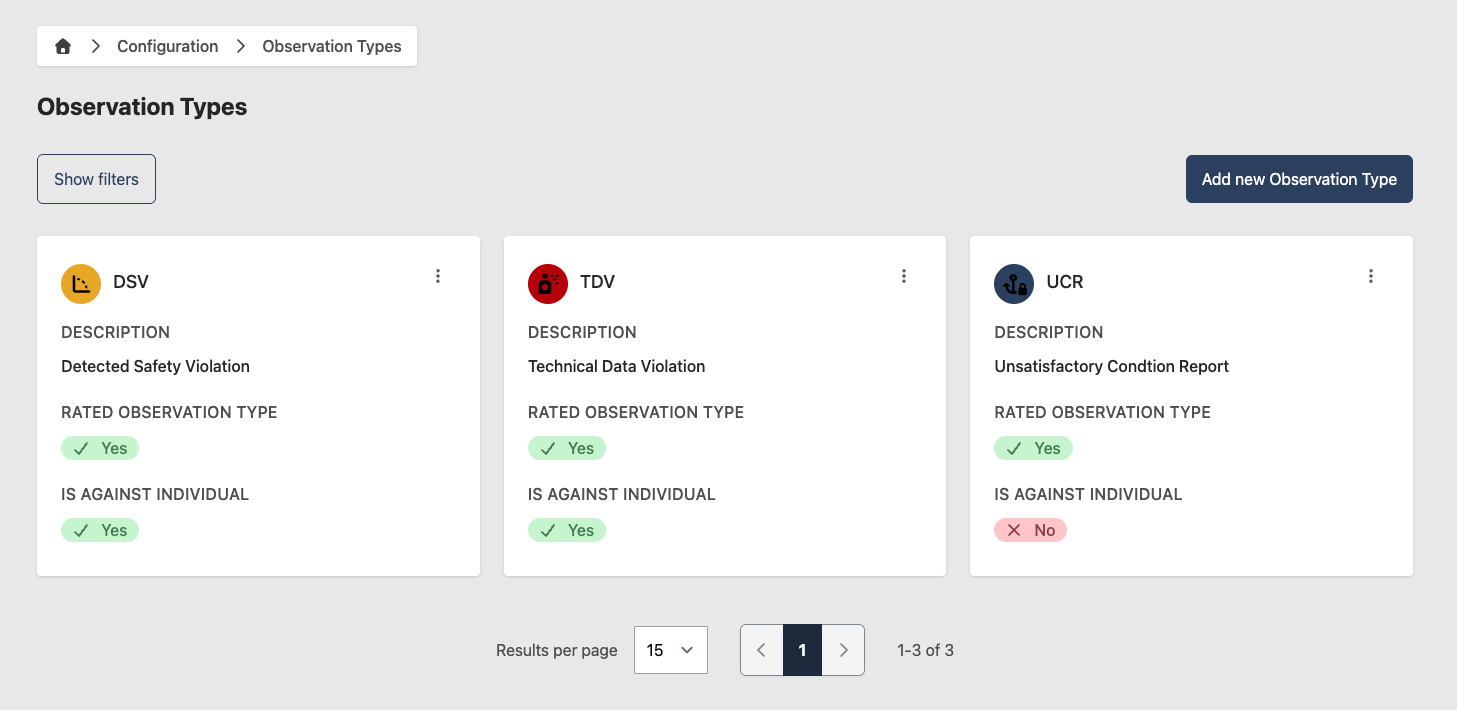
- DSV (Direct Safety Violation) — an observed unsafe act by an individual
- TDV (Technical Data Violation) — an observation of any person performing maintenance without the proper technical data available, available but not in use, or not following the correct sequence of steps
- UCR (Unsatisfactory Condition Report) — an unsafe or unsatisfactory condition other than a DSV, chargeable to the work center supervisor. UCRs are documented even when it is not possible to determine who created the condition
Add an observation
- Go to Observations in the main menu
- Click Add Observation
- Enter the following information:
- Inspector(s) (required) — inspector(s) who observed the act
- Observed Date (required) — date the observation occurred
- Work Center (required) — work center of the employee responsible
- Observation Type (required) — select the appropriate observation type
- Employees (required) — employees responsible. Not available for UCR observation types
- Supervisor (required) — responsible supervisor for the work center
- Equipment (optional) — any equipment involved with the observation
- Reference (required) — reference for the observation
- Narrative (required) — detailed narrative of the observation
- Attachments (optional) — supporting files. Accepted formats: JPG, PNG, PDF, DOC. Maximum file size: 10MB
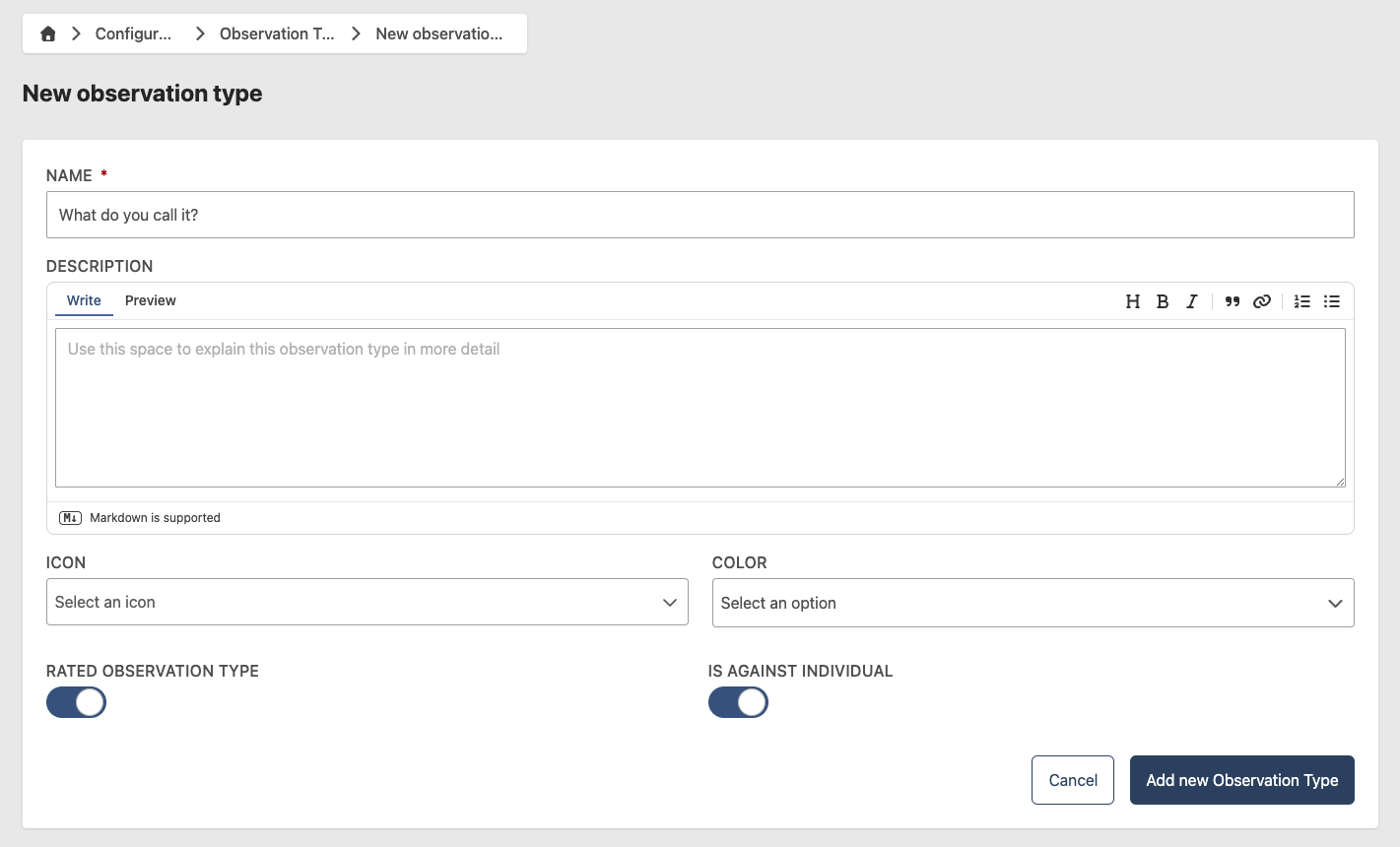
- Click Send for Chief Inspector Evaluation to submit the observation for review
To save your work and return later, click Save Draft instead.
Creating, submitting, or returning an observation notifies the relevant supervisors or QA Chief Inspectors. See Notifications for details.
Edit an observation
Only observations in Draft status can be edited.
- Select the observation from the list
- Make the necessary updates
- Click Send for Chief Inspector Evaluation
Review an observation
This section applies to users with the Chief Inspector role.
- Go to Observations in the main menu. Observations awaiting review will have an Evaluation status
- Select the observation to review
- Review and make any required corrections
- Click Complete to finalize the observation
Marking an observation as Complete cannot be reversed.