Organization
HG EQuAD is built around your Organization. Before anyone on your team can use HG EQuAD, your Organization must be set up. This includes adding details, configuring settings, and assigning a QA Chief Inspector.
Go to Configuration > Organization to manage your Organization. You'll need the appropriate access role to add, edit, or remove a Organization.
Add Organization

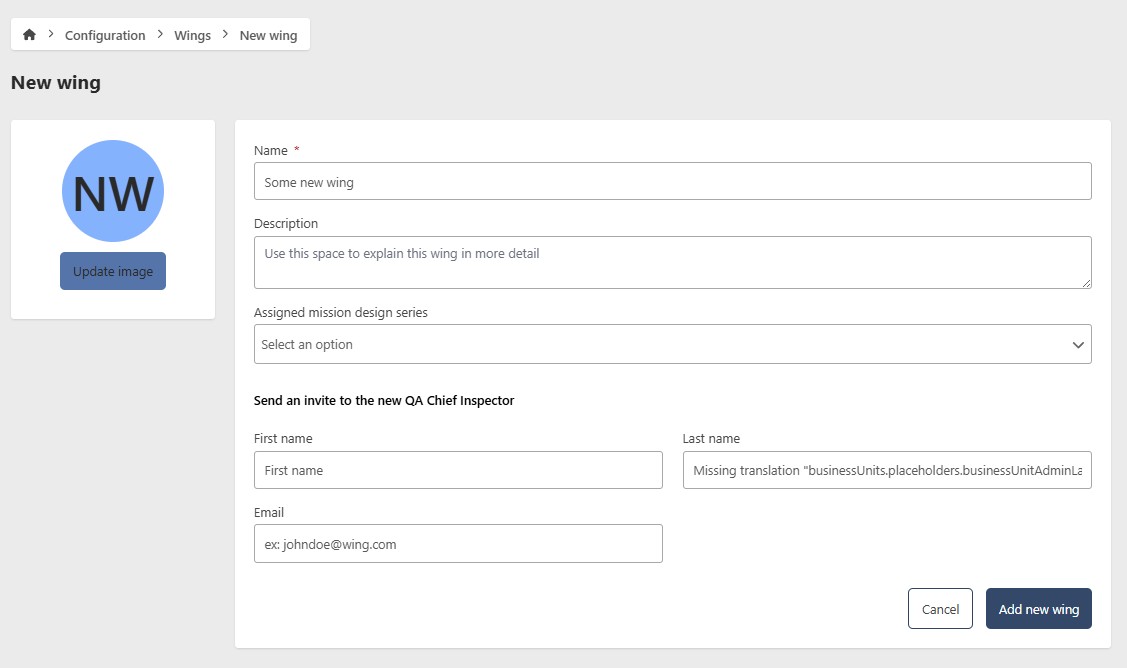
- Go to Configuration > Organization
- Click Add new Organization
- Enter the following information:
- Name (required)
- Description (optional)
- Send an invite to the new QA Chief Inspector (optional) — invites your QA Chief Inspector to begin setting up the Organization
- Click Add new Organization
Edit Organization
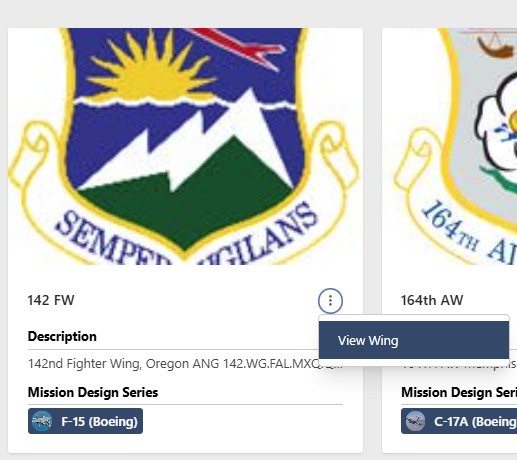
- Go to Configuration > Organization
- Click the contextual menu (⋯) next to the Organization and click View Organization
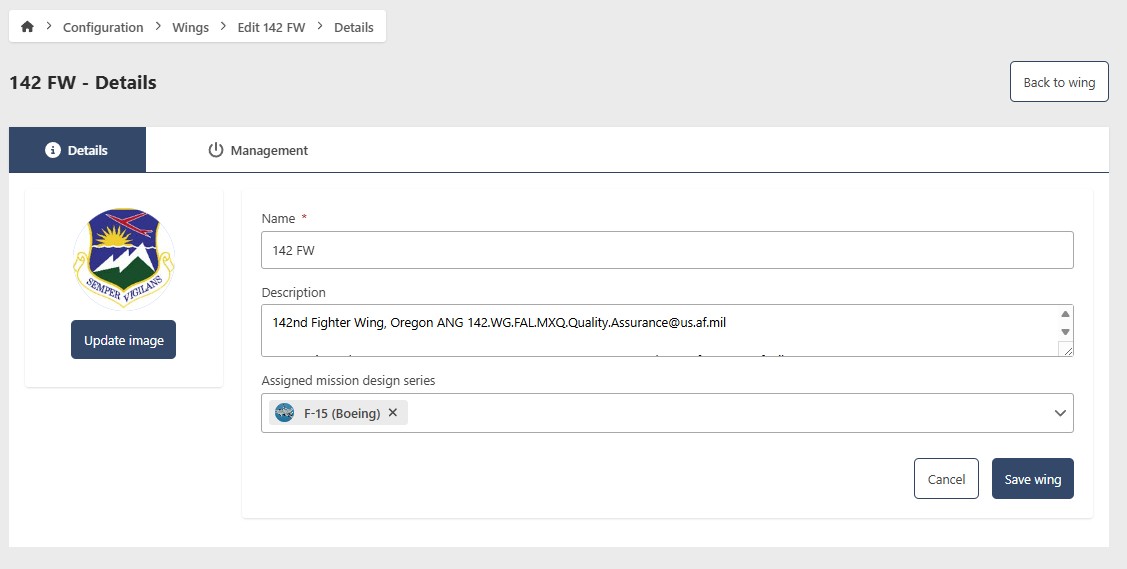
- Click Edit
- Update the following fields as needed:
- Name (required)
- Description (optional)
- Send an invite to the new QA Chief Inspector (optional)
- Click Save Organization
Remove Organization
- Go to Configuration > Organization
- Click the contextual menu (⋯) next to the Organization and click View Organization
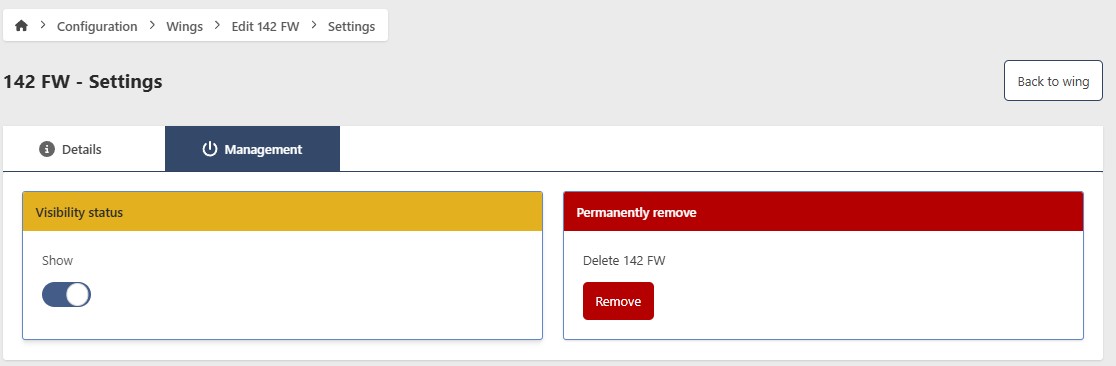
- Click Edit, then go to the Management tab
Hide Organization
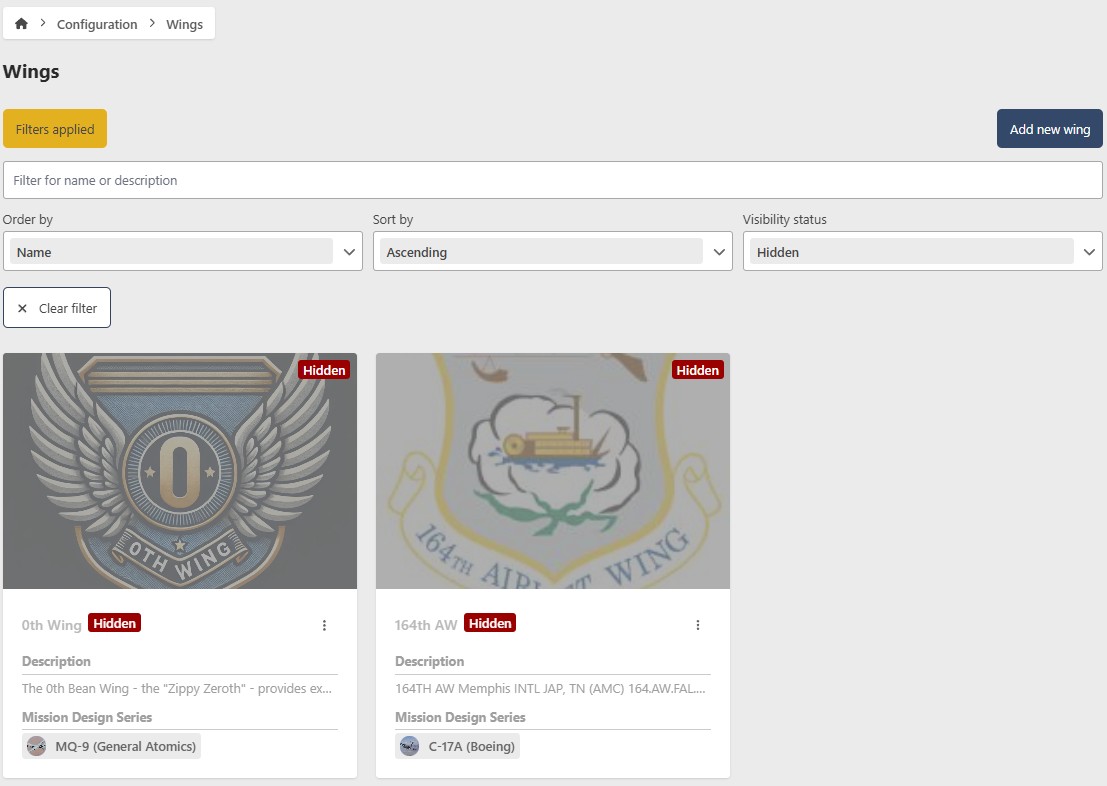
To temporarily hide a Organization without deleting it, toggle Show/Hide to Hide. To restore it, filter by Hidden status, open the Organization, and toggle Show/Hide back to Show.
Permanently remove Organization
caution
This action cannot be undone. Consider hiding the Organization instead if you may need it in the future.
- Click Remove
- Click Yes to confirm