Rebuttals
A rebuttal lets a supervisor dispute a finding on a completed scheduled inspection. The supervisor explains why the finding is not valid, and a Chief Inspector either withdraws the finding or lets it stand. If the finding is withdrawn, the inspection result may change from Fail to Pass. HG EQuAD notifies the people involved at each stage.
A rebutted finding shows one of these statuses:
- Pending QA review
- The supervisor submitted the rebuttal and is waiting for a decision
- Accepted
- The Chief Inspector agreed with the supervisor and the finding was withdrawn
- Finding upheld
- The Chief Inspector disagreed with the supervisor and the finding stands
Submit a rebuttal
This section applies to users with the Supervisor role.
You can submit a rebuttal only after the Chief Inspector has marked the inspection Completed. After that, you have a set number of weekdays to submit one.
-
Go to Inspection Tasks and open the completed inspection
-
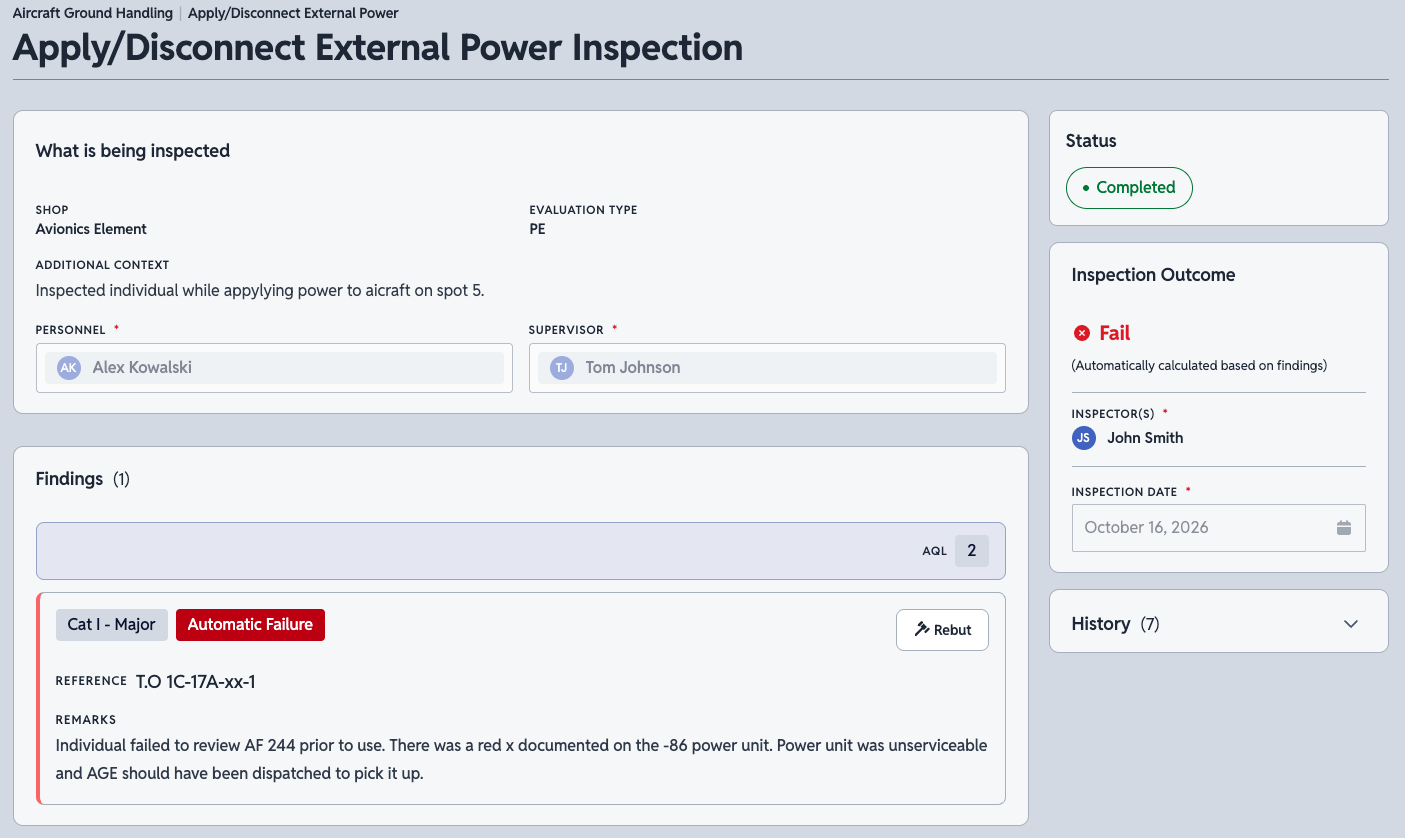
In the Findings section, find the finding you disagree with and click Rebut
-
In the Rebut this finding box, explain why the finding is not valid. You can format your text with Markdown
-
Click Submit rebuttal
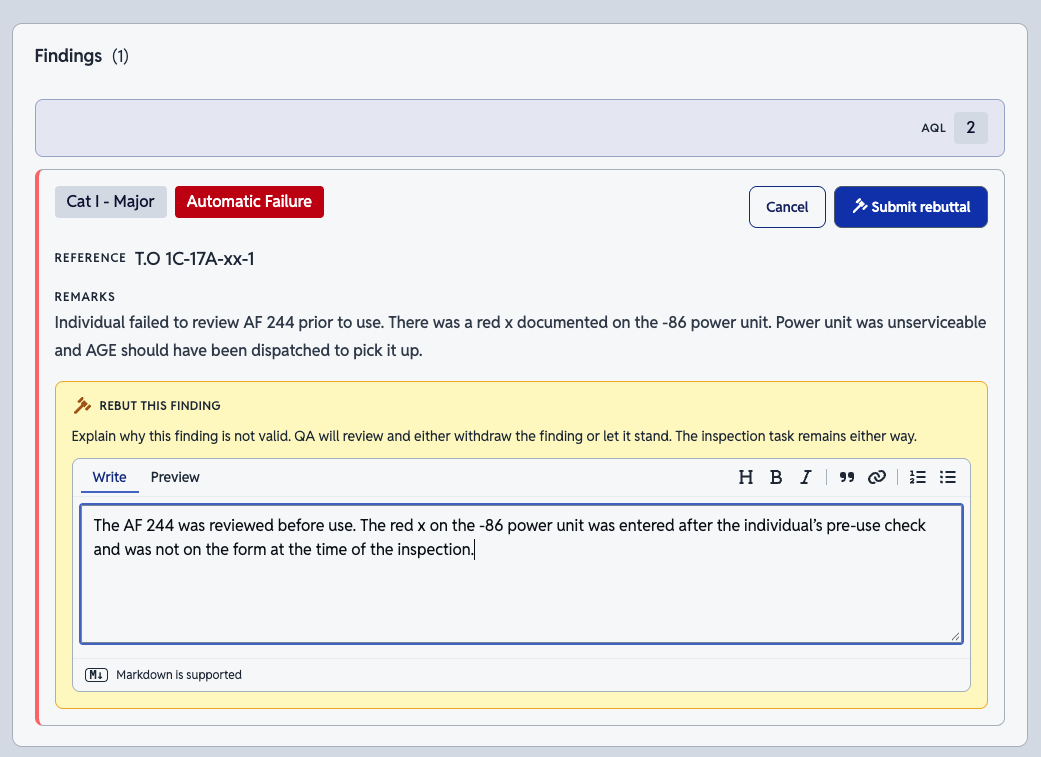
To discard the rebuttal before you submit it, click Cancel instead.
You can submit one rebuttal for each finding. The form has no attachment option, and you can't edit a rebuttal after you submit it. To change one, retract it and submit a new one.
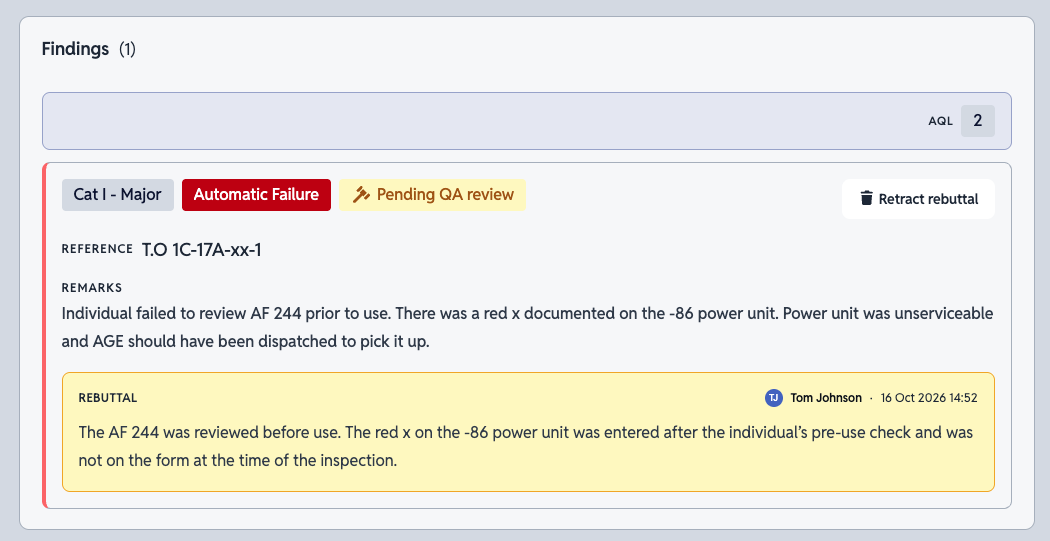
After you submit, the finding shows Pending QA review and your explanation appears beneath it. The QA Chief Inspectors in your Organization are notified. Their notice includes the finding and your reason.
Retract a rebuttal
You can retract a rebuttal while it is pending. After you retract it, you can submit a new rebuttal for the same finding.
- Open the inspection that contains the finding
- In the Findings section, click Retract rebuttal on the finding that shows Pending QA review
Retracting a rebuttal deletes it. This action cannot be undone.
When you retract a rebuttal, the QA Chief Inspectors in your Organization are notified.
Review a rebuttal
This section applies to users with the Chief Inspector role. Only Chief Inspectors can decide a rebuttal.
- Open the inspection and locate the finding with Pending QA review
- Review the finding and the supervisor's explanation
- Enter your Determination. A determination is required whether you withdraw the finding or let it stand
- You can withdraw the finding, or uphold the finding to let it stand
After you decide, the finding can't be rebutted again.
What happens after a decision
The finding shows the decision, and the supervisor's rebuttal and your determination appear together beneath it, each with the author and time.
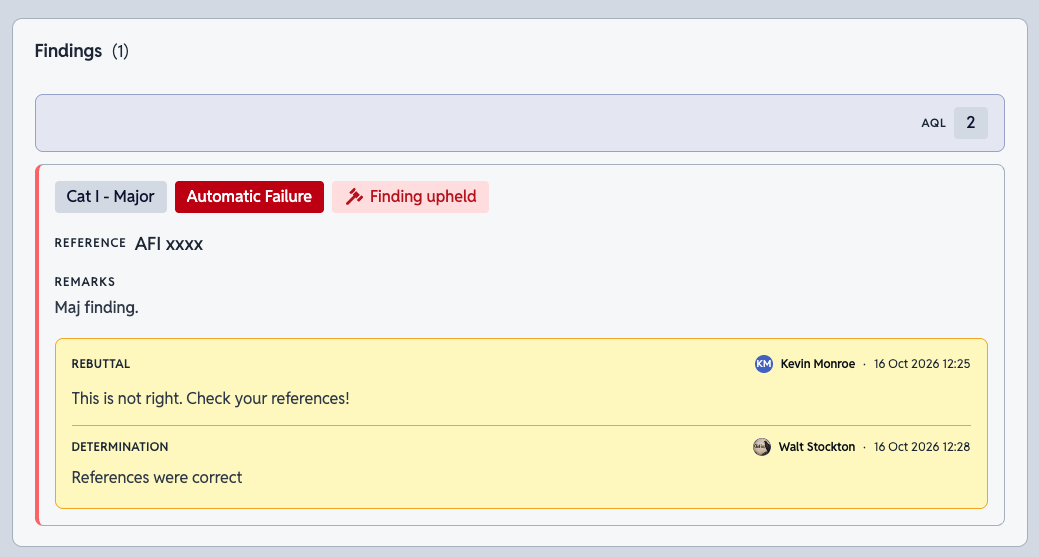
The supervisor who submitted the rebuttal is notified of the decision. The notice includes the finding, the supervisor's reason, and the Chief Inspector's decision with a determination.
If the Chief Inspector withdraws the finding, the inspection result may change from Fail to Pass. A withdrawn finding doesn't always change the result. For example, if an inspection has two Major findings and only one is withdrawn, the inspection still fails. When the result does change from Fail to Pass, the supervisors of the inspection's Work Center are also notified that the result was overturned.
If the Chief Inspector lets the finding stand, the finding and the inspection result stay the same.
Submitting, retracting, and deciding a rebuttal each send notifications. See Notifications for details.
Check rebuttal status in the QA Inspections list
When rebuttals are available for your Organization, a gavel icon appears next to the name of any completed inspection that has a rebuttal. The icon shows the rebuttal's status. If an inspection has more than one rebuttal, the icon shows pending first, then rejected. Expand the inspection's row to see the status next to each finding.