Work Centers
Work Centers represent the work centers and offices in your Organization. This includes both Work Centers that perform inspections and those that exist solely for management, review, and approval workflows.
Each Work Center can be assigned a parent Work Center, which HG EQuAD uses to establish the chain of command for notification routing, reviews, and approvals. Build your Work Centers from the top down, starting with your highest-level management office and working down to individual work centers.
Go to Configuration > Work Centers to manage your Work Centers. You'll need the appropriate access role to add, edit, or remove a Work Center.
Add a Work Center
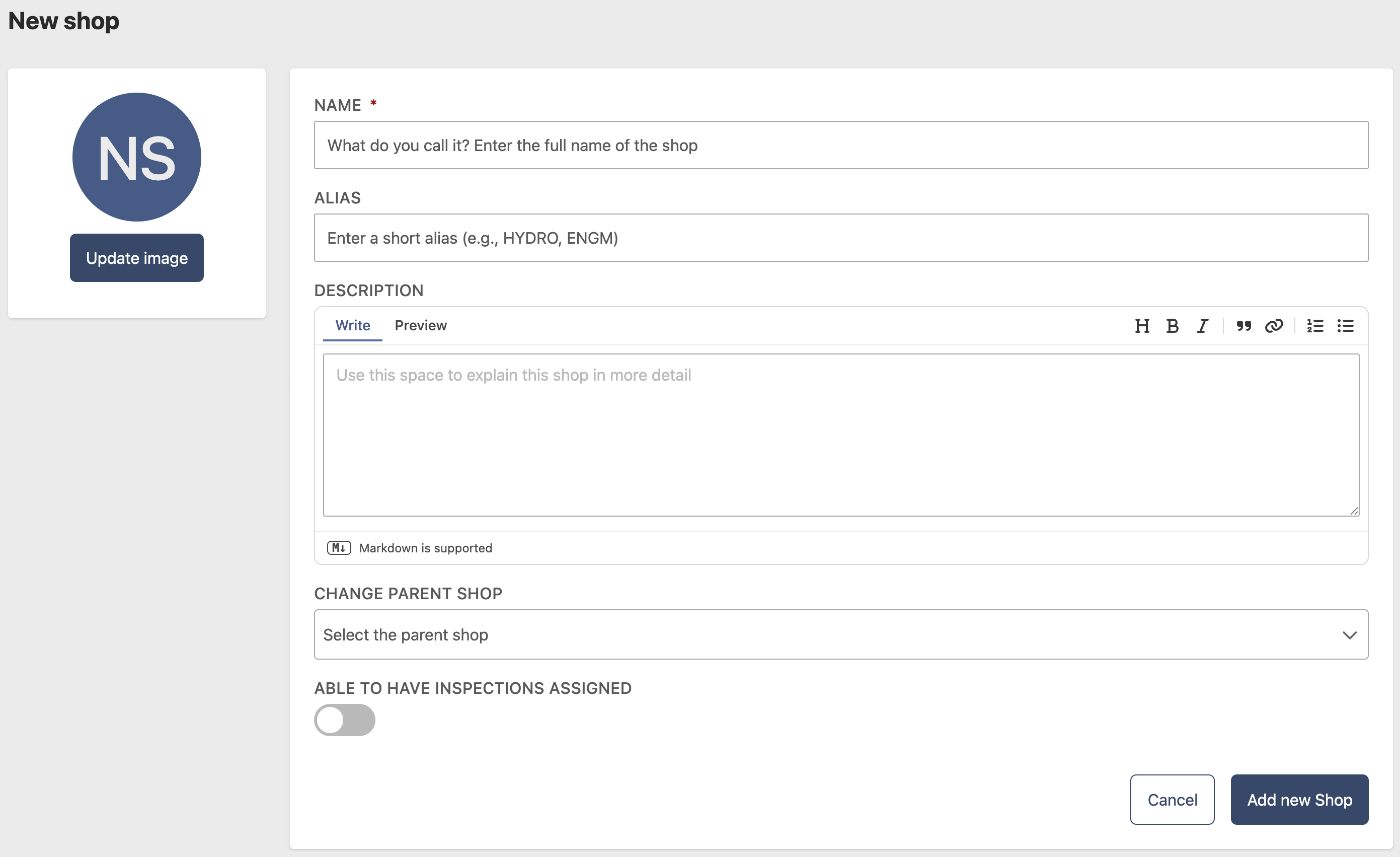
- Go to Configuration > Work Centers
- Click Add new Work Center
- Enter the following information:
- Name (required)
- Description (optional)
- Parent Work Center (optional) — assigns this Work Center to a higher-level office in your chain of command. Used for notification routing, reviews, and approvals
- Able to have inspections assigned — enable this for work centers that perform inspections. Leave it off for management offices that only participate in reviews and approvals
- Update Image (optional)
- Click Add new Work Center
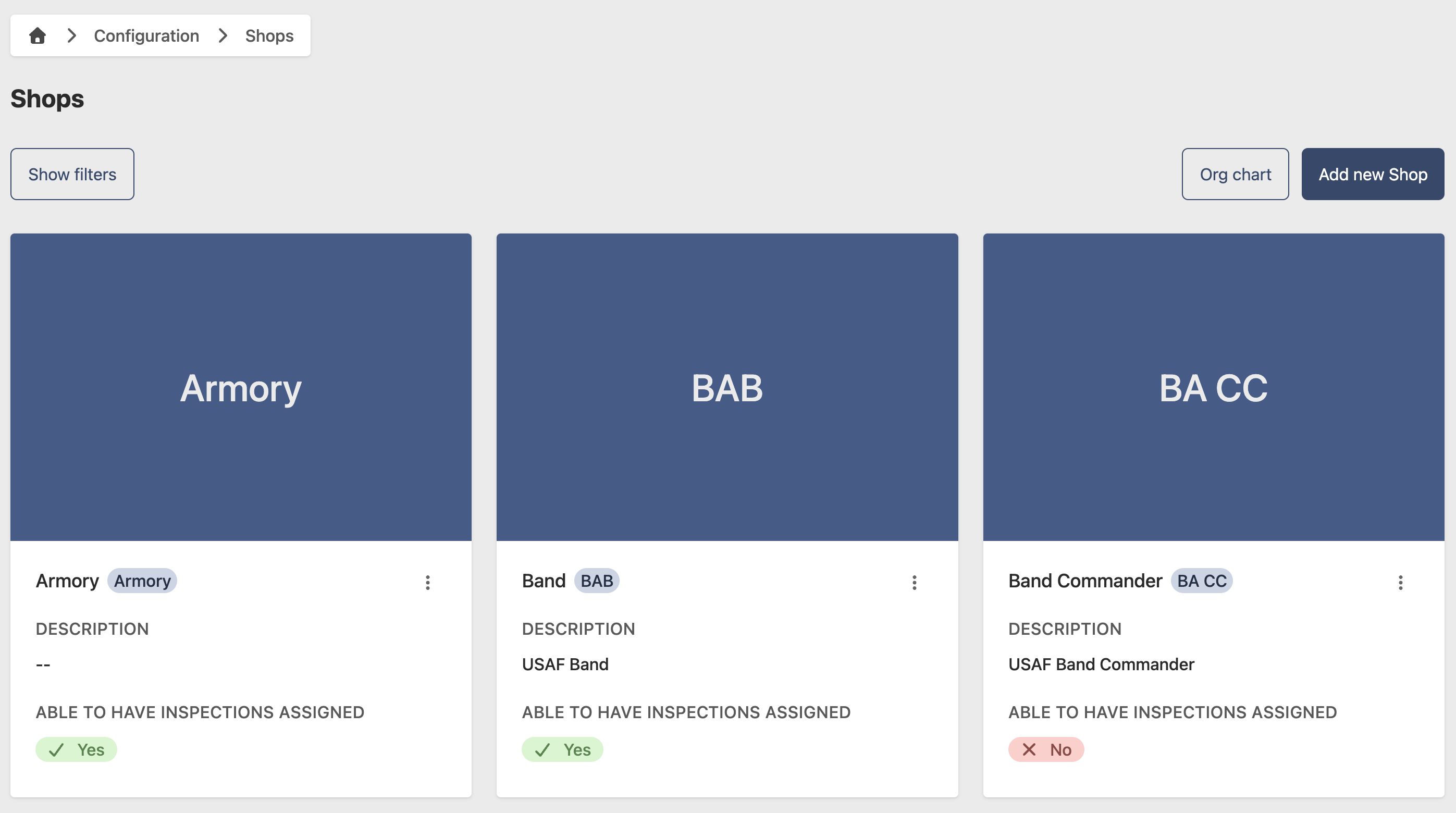
Edit a Work Center
- Go to Configuration > Work Centers
- Click the contextual menu (⋯) next to the Work Center and click View Work Center
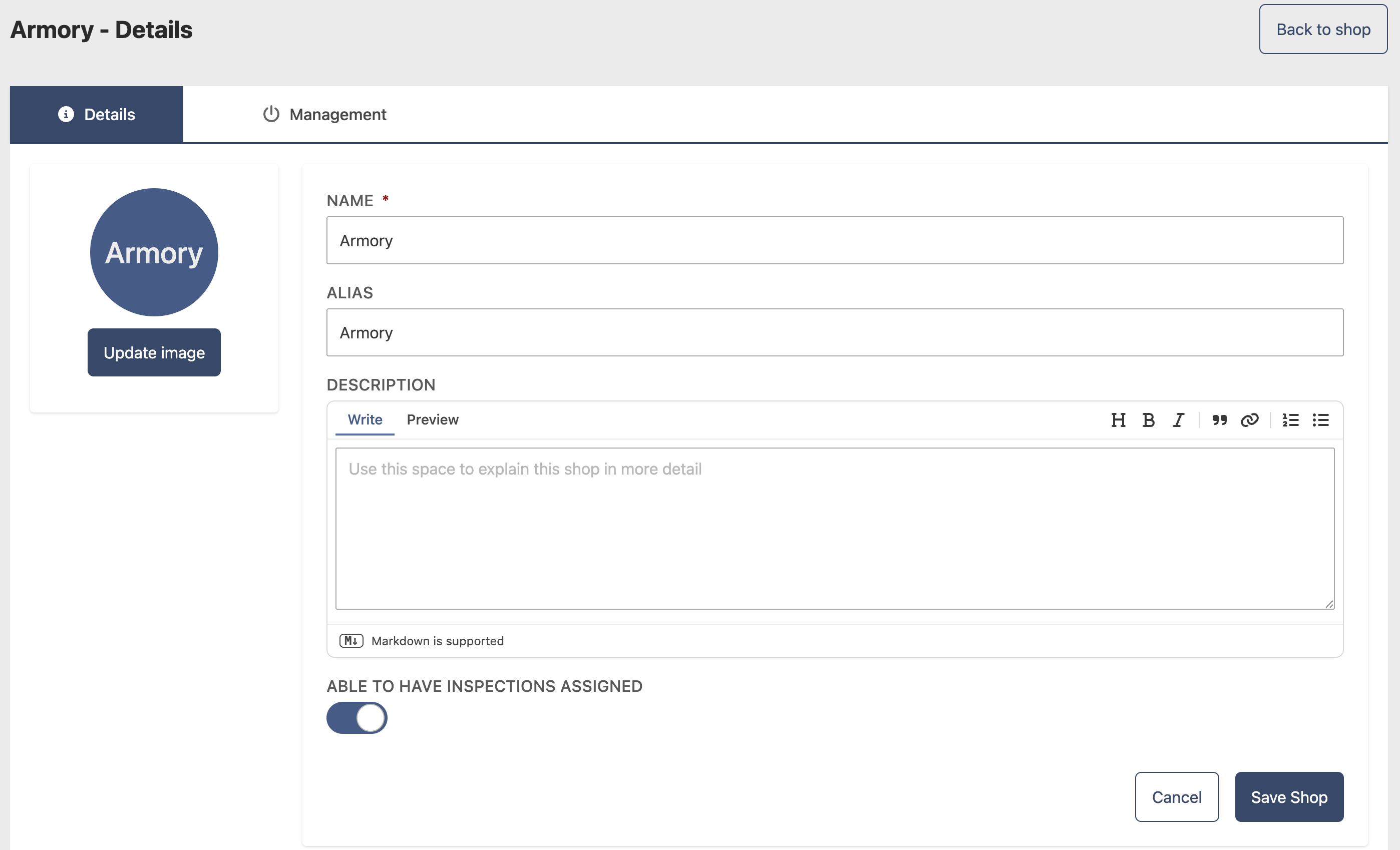
- Click Edit
- Update the following fields as needed:
- Name (required)
- Description (optional)
- Parent Work Center (optional)
- Able to have inspections assigned
- Update Image (optional)
- Click Save Work Center
Remove a Work Center
- Go to Configuration > Work Centers
- Click the contextual menu (⋯) next to the Work Center and click View Work Center
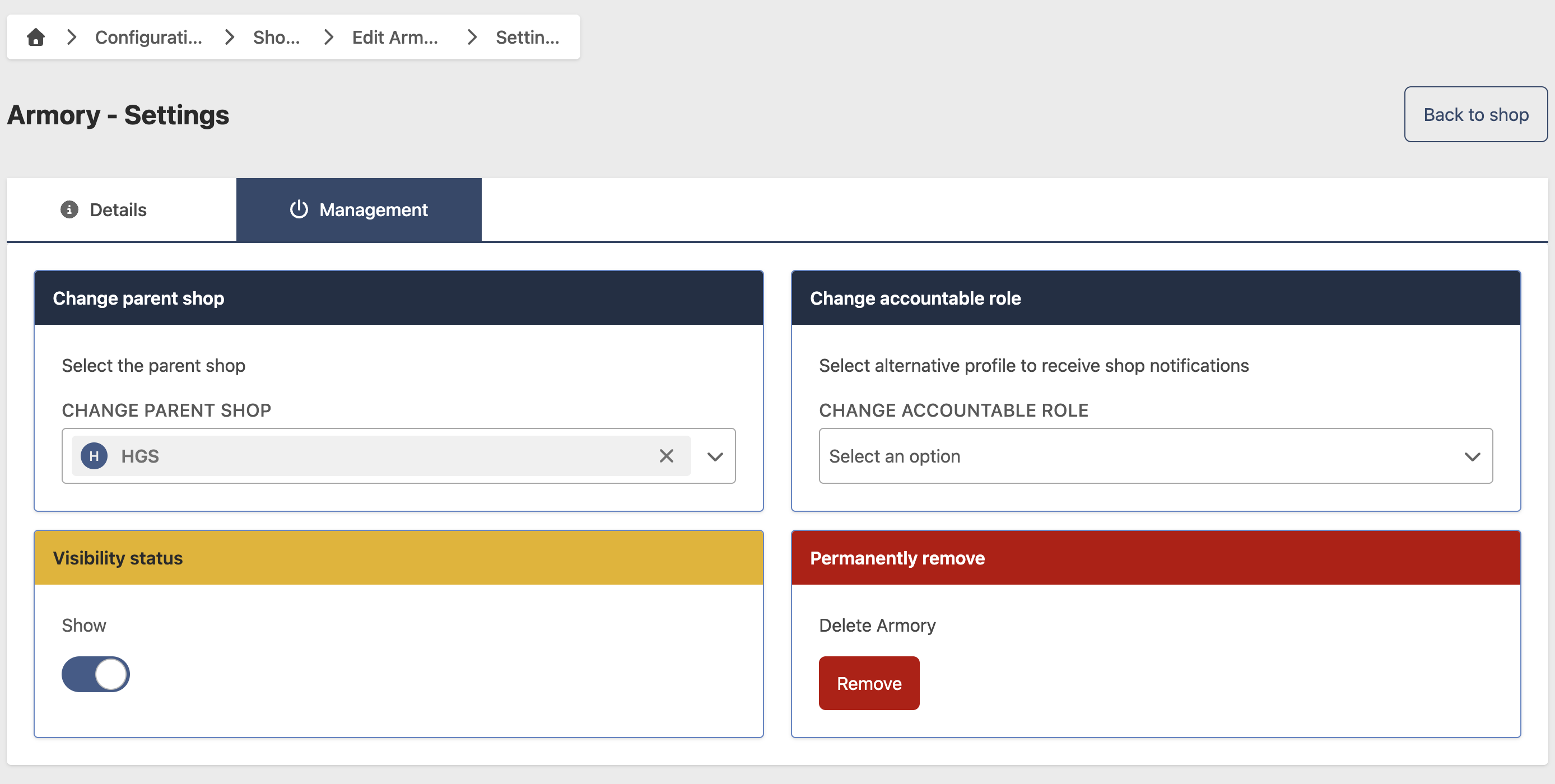
- Click Edit, then go to the Management tab
Hide a Work Center
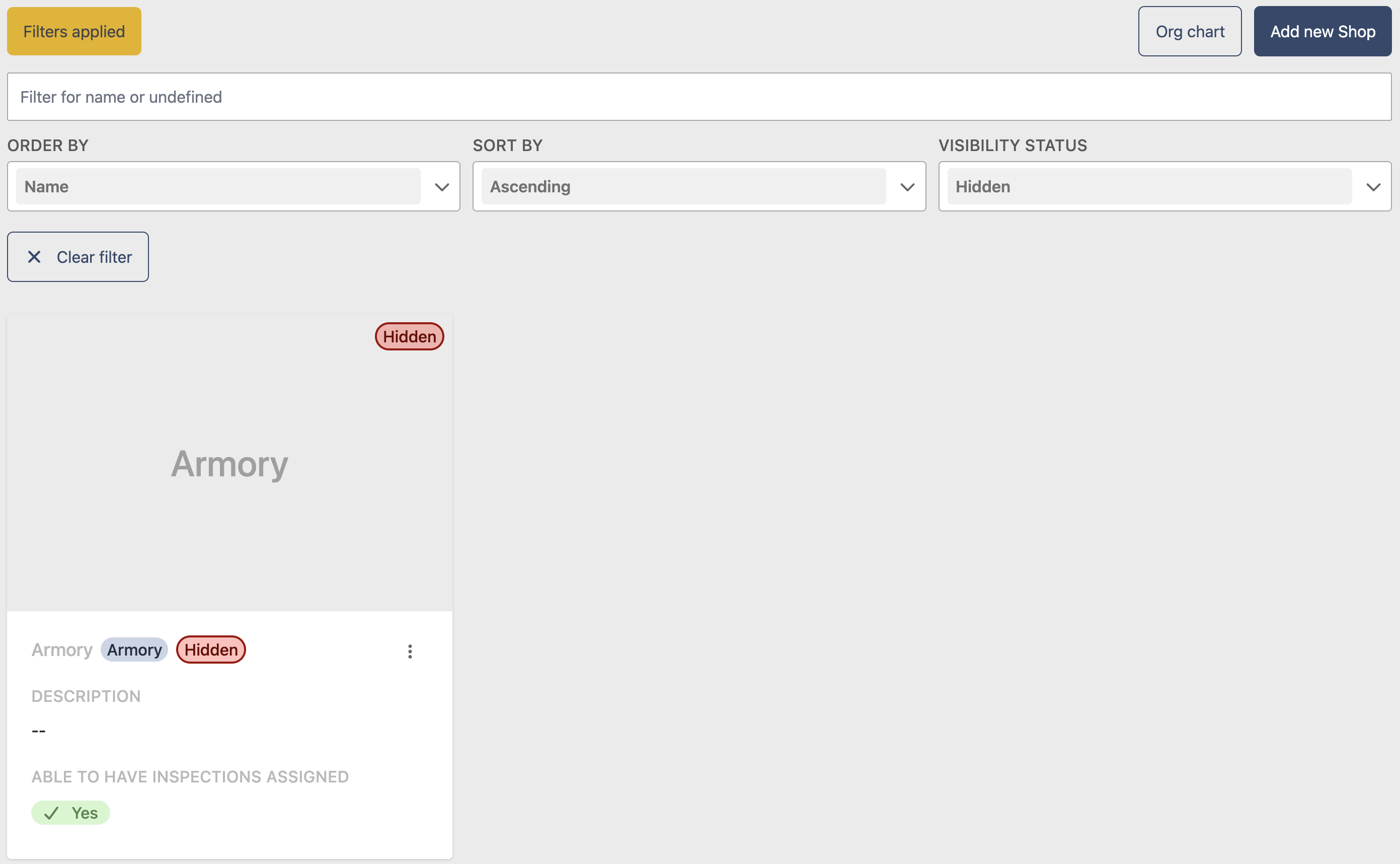
To temporarily hide a Work Center without deleting it, toggle Show/Hide to Hide. To restore it, filter by Hidden status, open the Work Center, and toggle Show/Hide back to Show.
Permanently remove a Work Center
This action cannot be undone. Consider hiding the Work Center instead if you may need it in the future.
- Click Remove
- Click Yes to confirm