Configure Your Organization
Platform Configuration settings apply globally across your entire HG EQuAD account. You'll need an NGB Admin role to access and update these settings.
Go to Configuration > Platform Configuration to manage your organization's settings.
Organization details
Keep your organization's basic information up to date.
- Go to Configuration > Organization
- Update the following fields as needed:
- Organization Name
- Website
- Phone Number
- Assets Managed — the type of assets your organization manages
- Click Save Organization
Platform settings
Platform settings control how HG EQuAD behaves across all Organizations. You'll want to update these carefully. Changes affect all users.
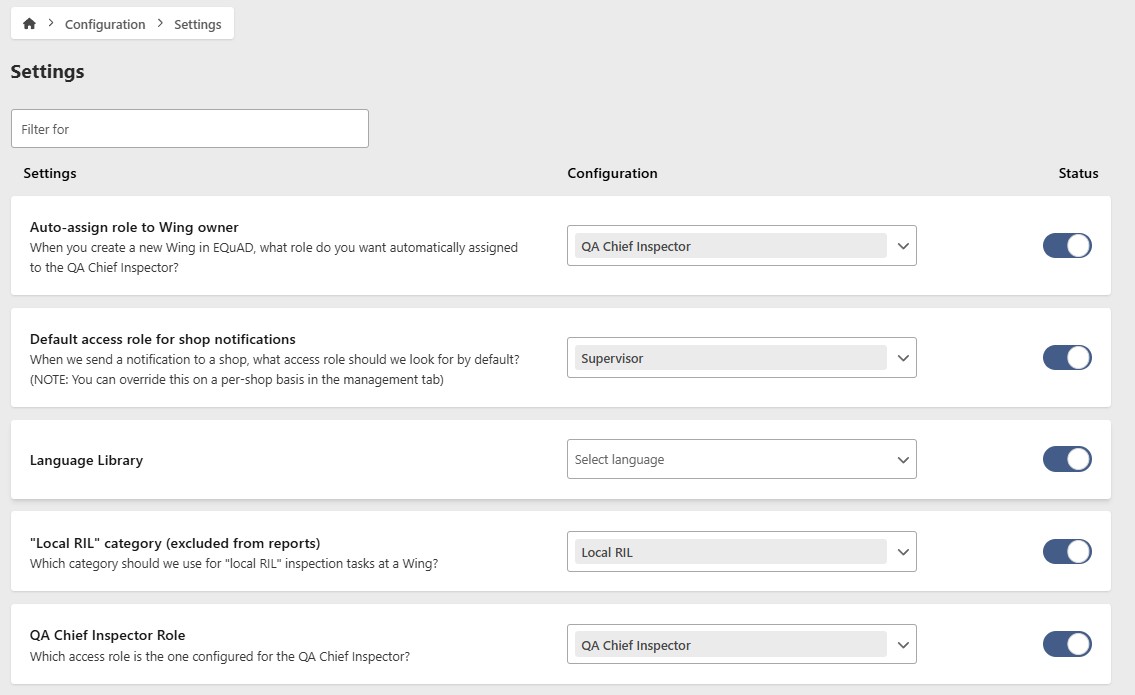
- Go to Configuration > Settings
- Review and update the following settings as needed
People and access
- Auto-assign role to Organization owner
- Sets the role automatically assigned to the QA Chief Inspector when a new Organization is created
- Default access role for Work Center notifications
- Sets the default role for Work Center notification routing. Can be overridden per Work Center
- QA Chief Inspector Role
- Designates which role serves as QA Chief Inspector
Inspections
- Language library
- Sets the terminology library for all users
- Local RIL category
- Sets the category used for local inspection items
- Enable inspection plan task grace period
- When enabled, overdue inspection plan tasks that have been started can still be submitted within a grace period
- Include supervisors in personnel selectors
- When enabled, supervisors can be selected as both employees and supervisors when documenting inspections
Observations
- Include observations in metrics dashboard results
- When enabled, finalized observations are included in metrics dashboard scoring
- Allow observations to have a goal above 0
- When enabled, observations can have an allowed goal in reports
- RCA investigation due days
- Sets the maximum number of calendar days before an RCA investigation is flagged as overdue
Organization Settings
Organization settings apply only to a specific Organization and can be customized for its operational needs.
- Go to Configuration > Organizations
- Select your Organization and click Edit Organization > Settings
- Review and update the following settings as needed
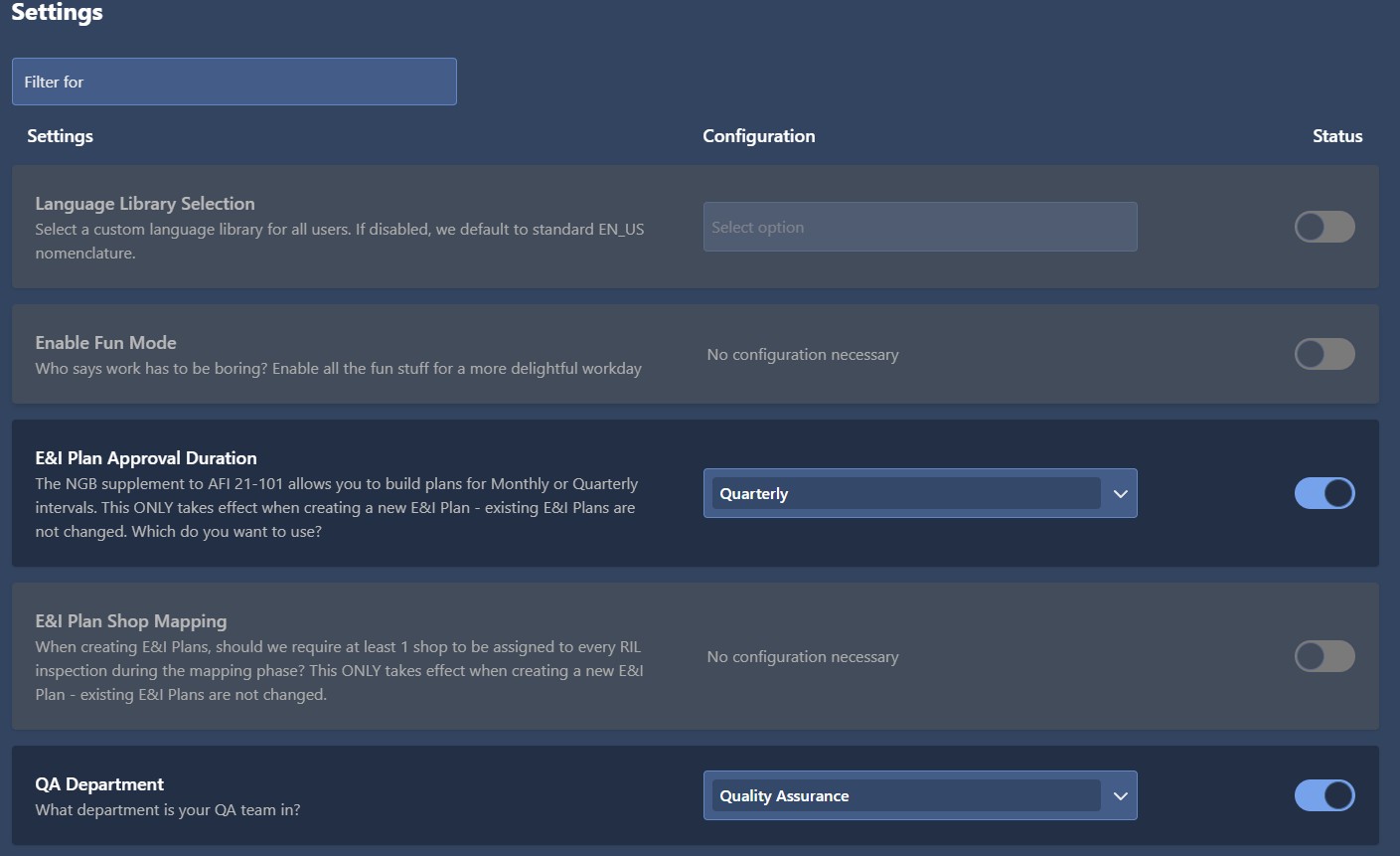
- Language Library
- Overrides the platform-level language library for this Organization
- QA Department
- Designates which Work Center is your QA team
- Require a Work Center during inspection mapping
- When enabled, at least one Work Center must be assigned to each inspection during the mapping phase