Document an Inspection
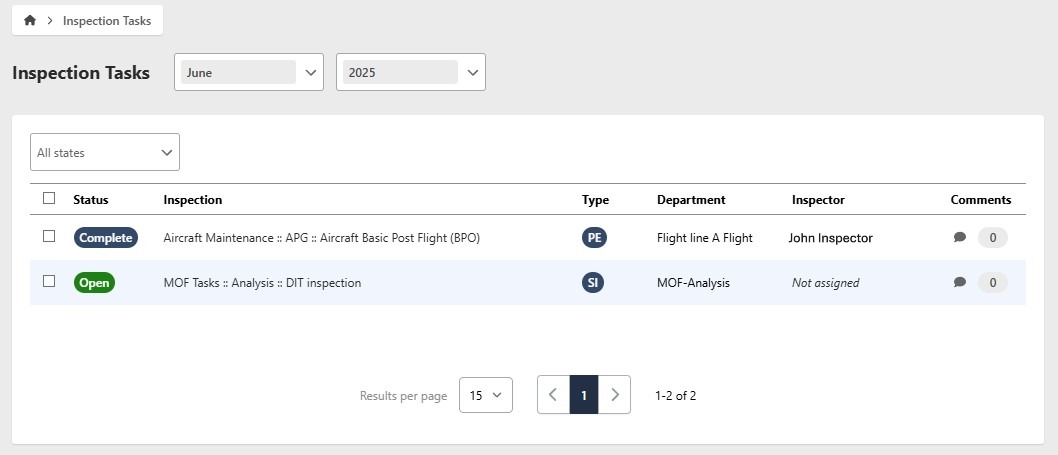
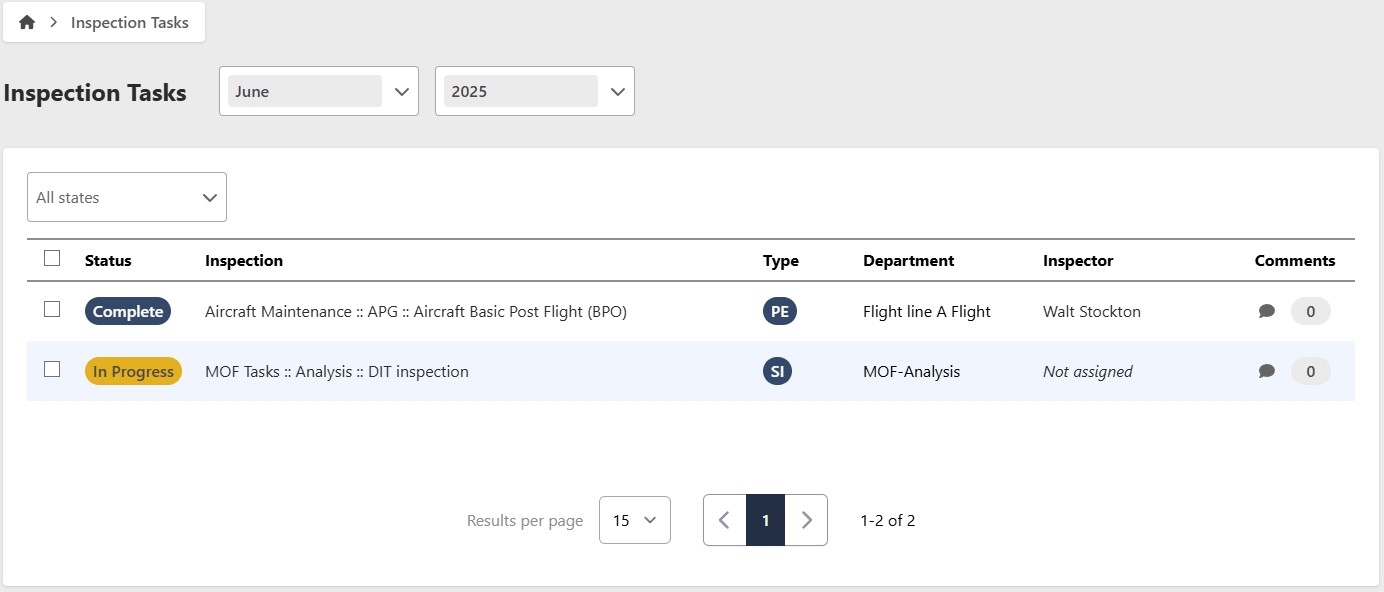
Inspections assigned to your Work Center are documented in the Inspection Tasks screen. Each inspection has one of the following statuses:
- Open — ready to document
- In Progress — documentation has begun but isn't finished
- Evaluation — documentation is complete and waiting for the Chief Inspector's review
- Complete — documentation is done and has been reviewed by the Chief Inspector
Only inspections listed on an approved E&I Plan are eligible for documentation. Inspections must be documented within the same month they're scheduled and can't be carried over to the following period.
If your organization has enabled multiple inspections per item, an inspection's title may show a sequence label (e.g. "2 of 5") indicating which instance you're documenting. Each instance is tracked and completed separately.
Document an inspection
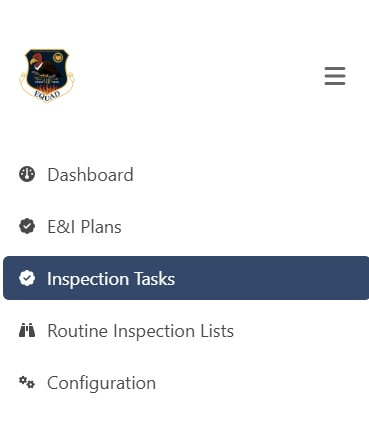
- Go to Inspection Tasks in the main menu. By default the current month's inspections are shown. Use the year and month selectors to view a different period.
-
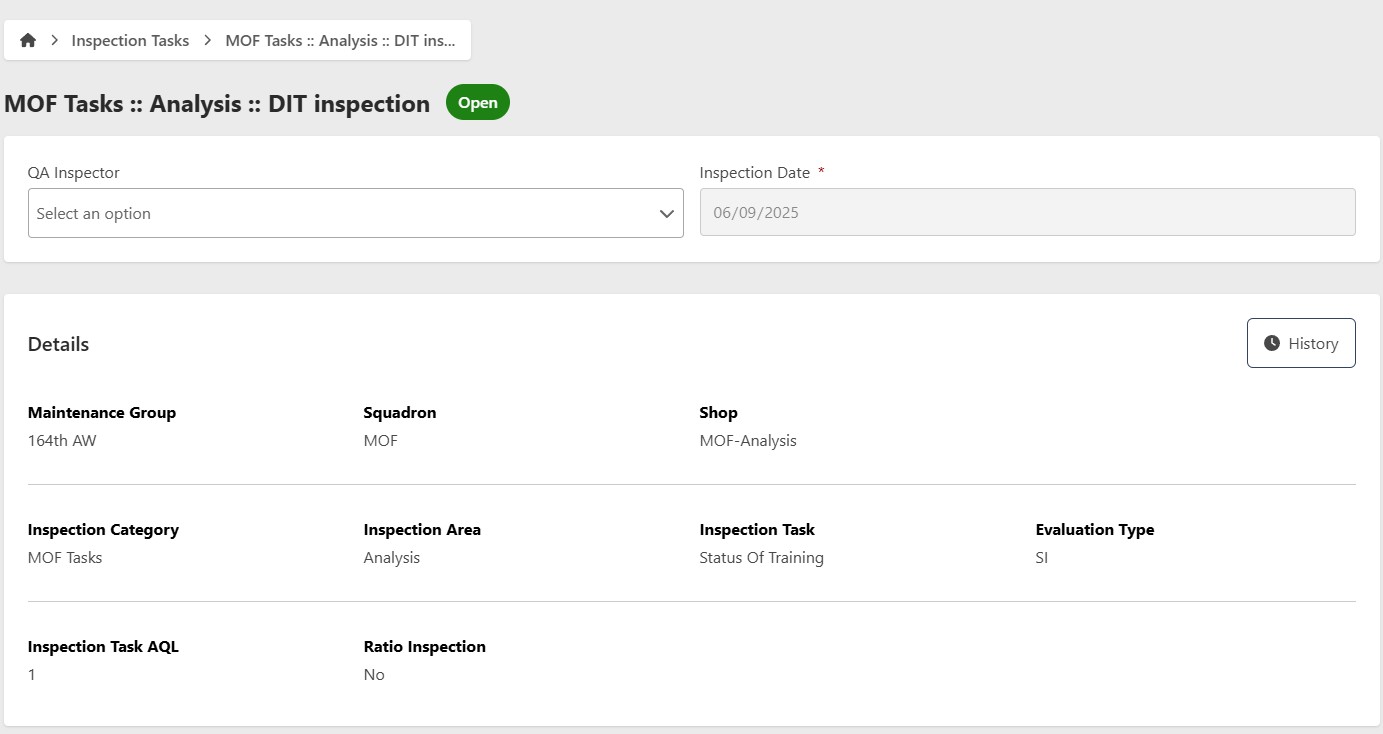
Click an inspection with Open status to open the inspection form
-
Select the QA Inspector who performed the inspection and the date
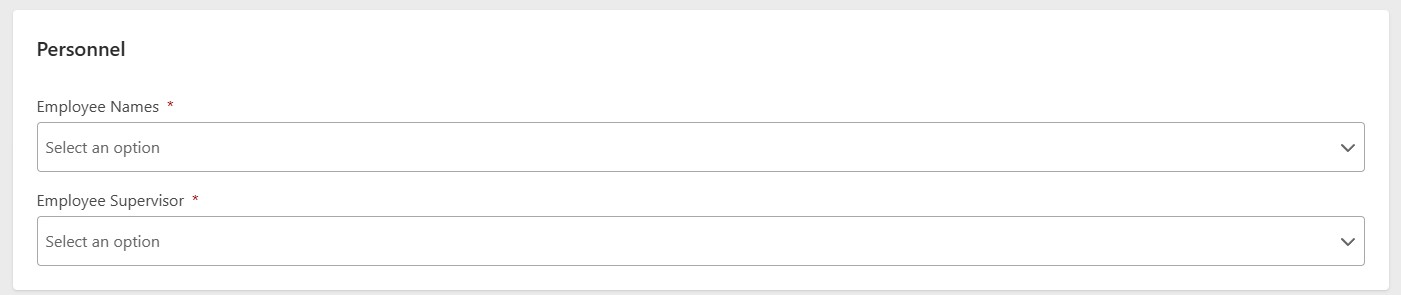
- Select the employees who were inspected and their supervisor. If employees aren't listed, verify they've been added in People configuration and assigned to the correct work center. The supervisor defaults to the Work Center supervisor set in Work Center configuration.
- Enter any equipment used in the inspection (optional). Use the Equipment toggle to identify aircraft or other equipment.


If the inspection task is ratio based, a Ratio-Based Inspection Details panel appears. See Ratio-Based Inspections for details.
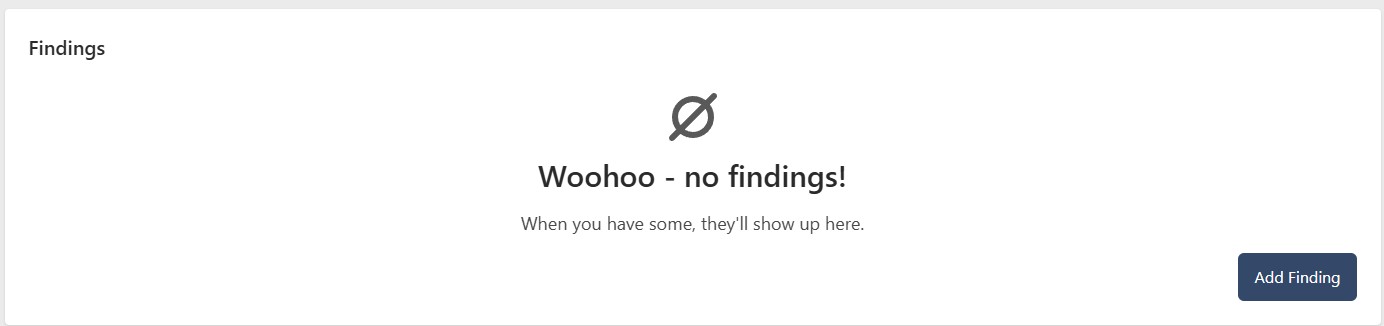
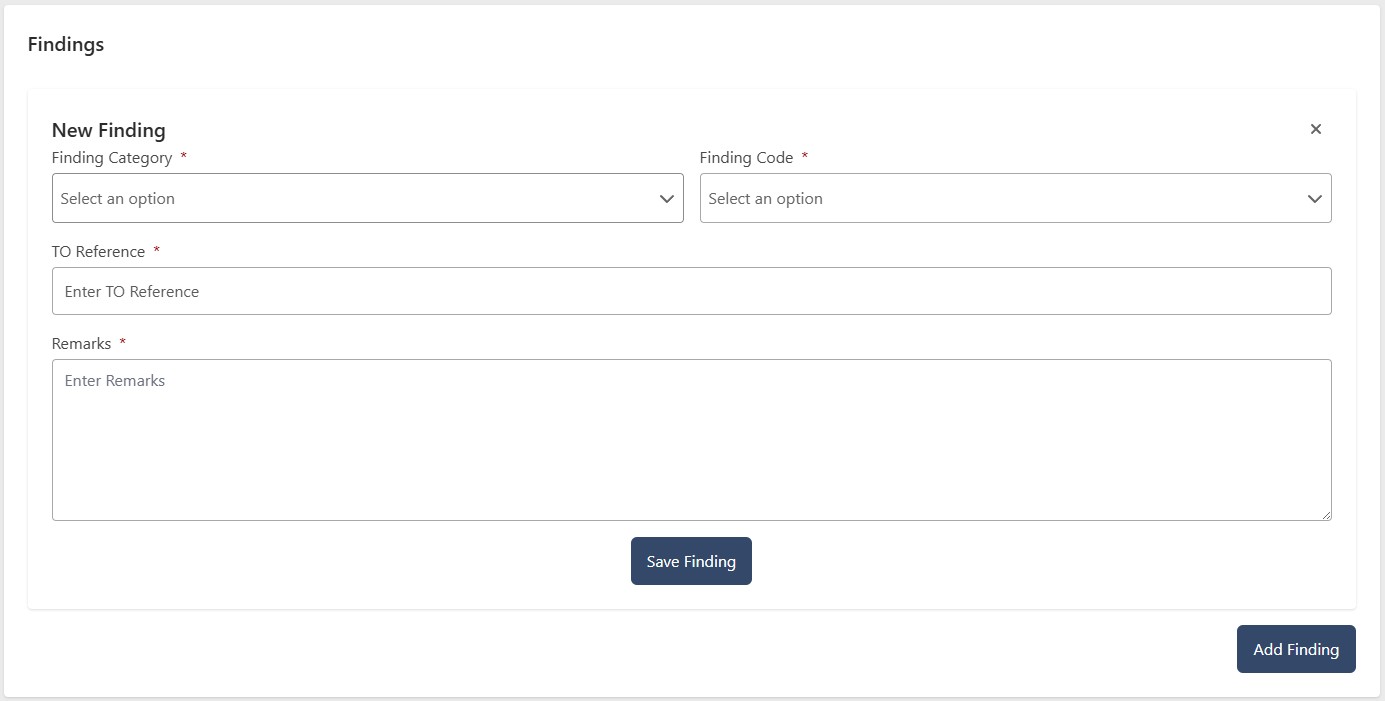
- Click Add Findings to document any findings from the inspection. This automatically moves an Open inspection to In Progress. Enter the following for each finding:
- Finding Category (required)
- Code (required)
- Reference (required)
- Remarks (required)
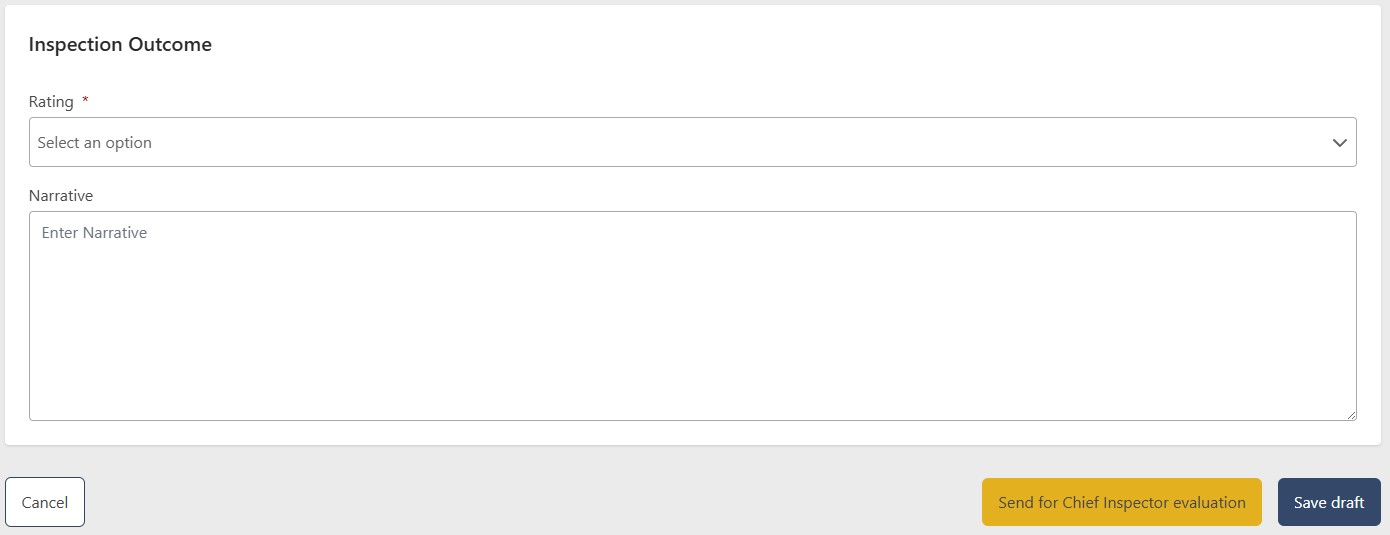
- When you've completed the form, either:
- Click Save Draft to save your progress and return later. The inspection status changes to In Progress
- Click Send for Chief Inspector Evaluation to submit for review. The inspection status changes to Evaluation
- The Chief Inspector reviews the submission. They can update the results and click Complete to finalize, or click Return to Inspector to send it back to In Progress for rework

Submitting, returning, or failing an inspection notifies the relevant QA Chief Inspectors, inspector, or Work Center supervisors. See Notifications for details.