People
People are the users and personnel managed in HG EQuAD. This includes both people who need login access, like supervisors performing reviews, and people who don't need to log in but are tracked in the system, like personnel who are inspected.
Go to Configuration > People to manage your People. You'll need the appropriate access role to add, edit, or remove a Person.
Add a Person
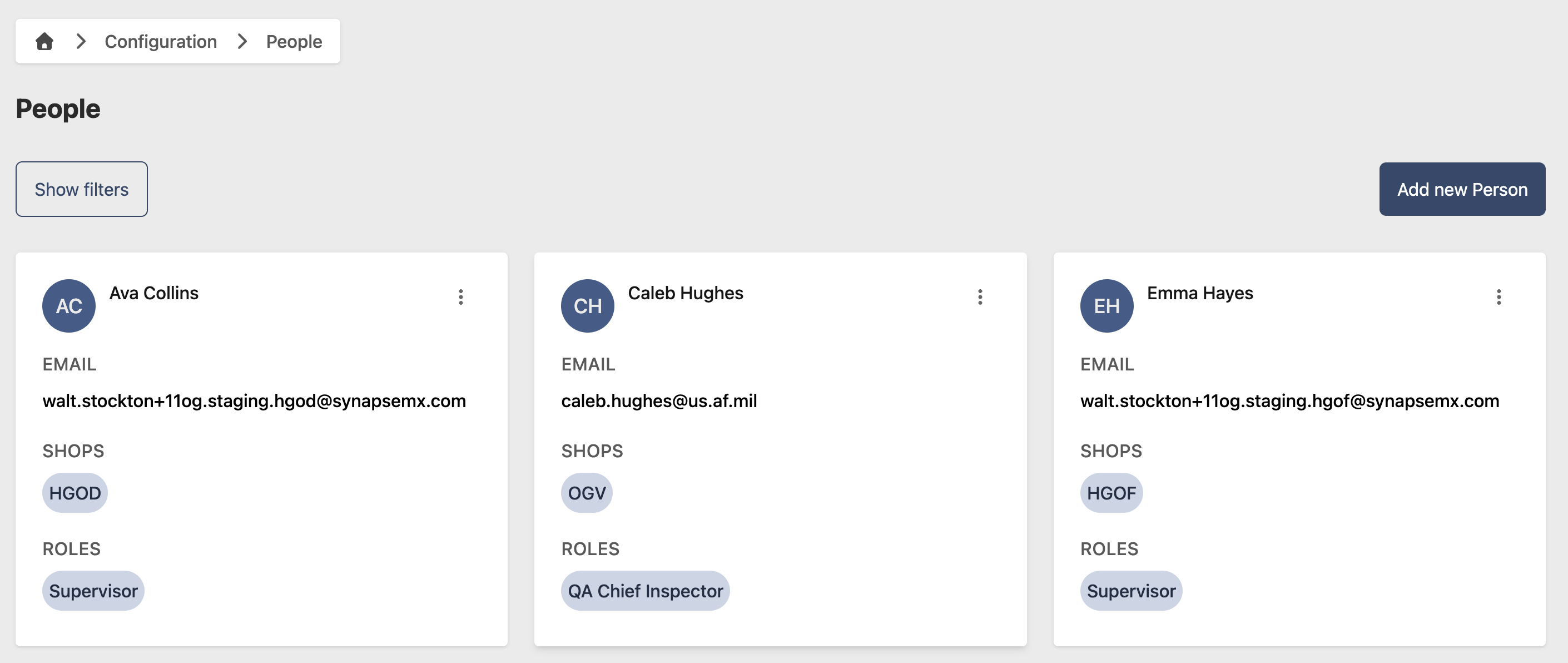
- Go to Configuration > People
- Click Add new Person
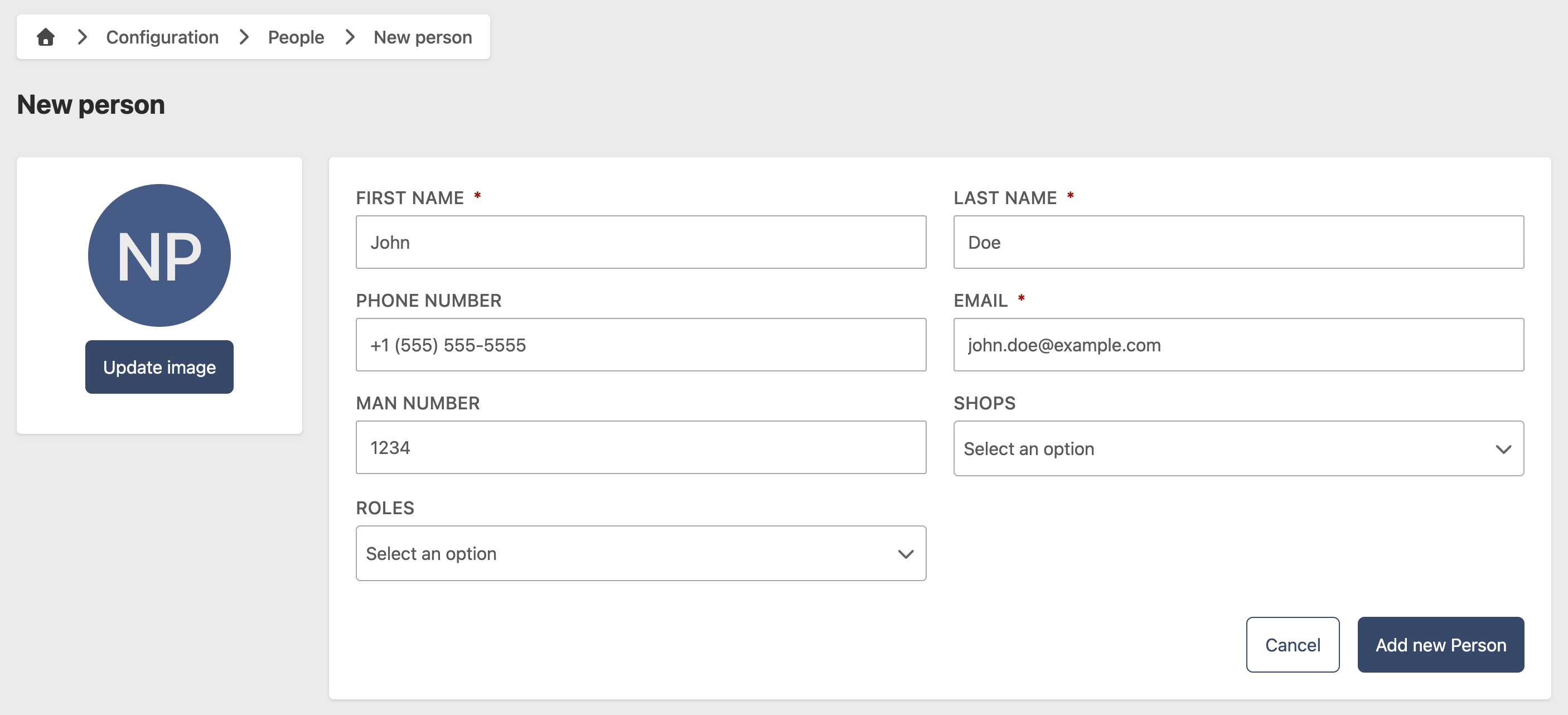
- Enter the following information:
- First Name (required)
- Last Name (required)
- Phone Number (required) — used to receive notifications if the Person opts in under profile settings
- Email (required) — used as the username for login. New users receive an automated email with a link to set their password
- Man Number (optional)
- Work Centers (optional) — select one or more Work Centers the Person is assigned to
- Role (optional) — you can only assign roles with fewer permissions than your own
- Organization (required) — defaults to your own Organization
- Update Image (optional)
- Click Add new Person
Edit a Person
- Go to Configuration > People
- Click the contextual menu (⋯) next to the Person and click View Person
- Click Edit
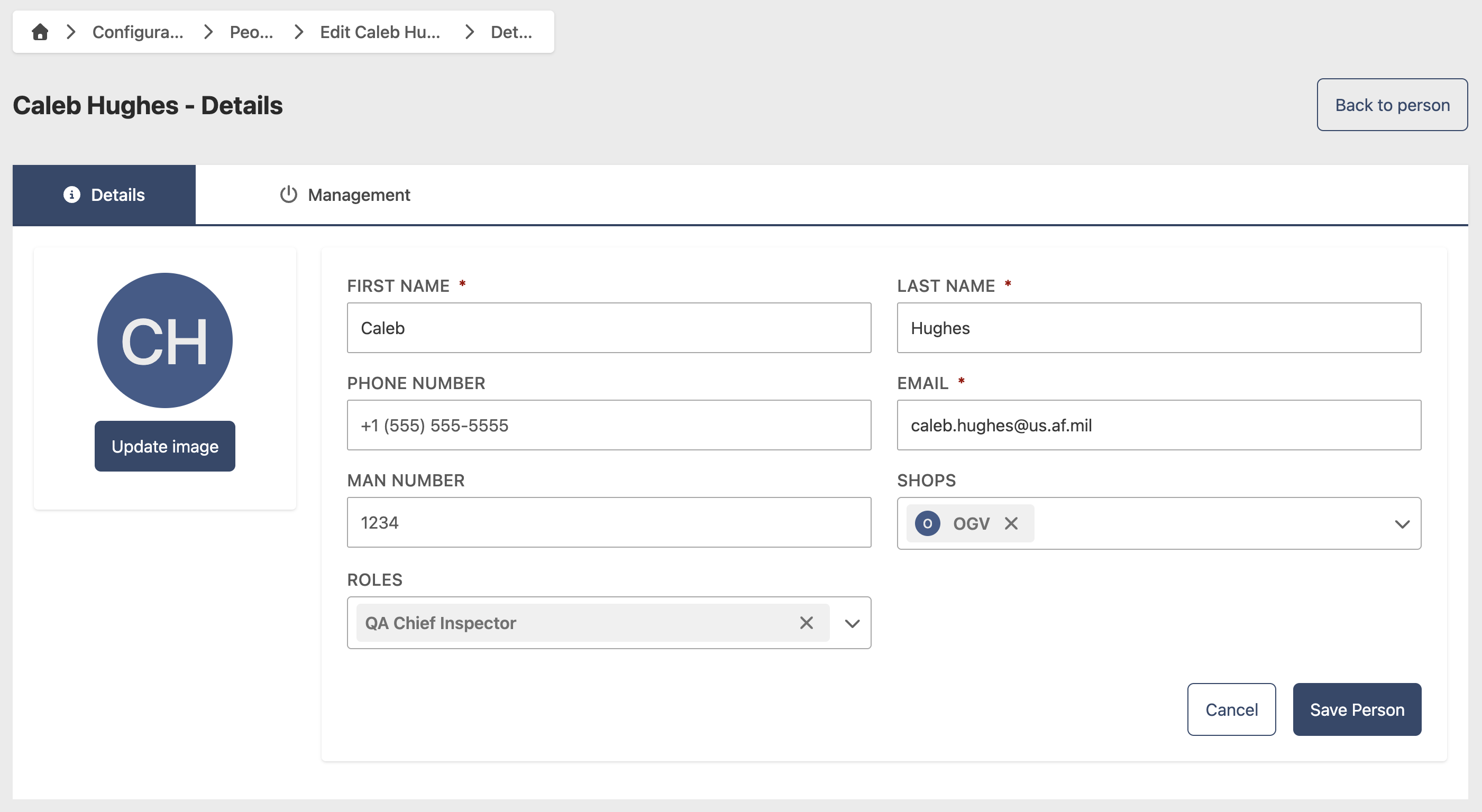
- Update the following fields as needed:
- First Name (required)
- Last Name (required)
- Phone Number (required)
- Email (required)
- Man Number (optional)
- Work Centers (optional)
- Role (optional)
- Organization (required)
- Update Image (optional)
- Click Save Person
Remove a Person
- Go to Configuration > People
- Click the contextual menu (⋯) next to the Person and click View Person
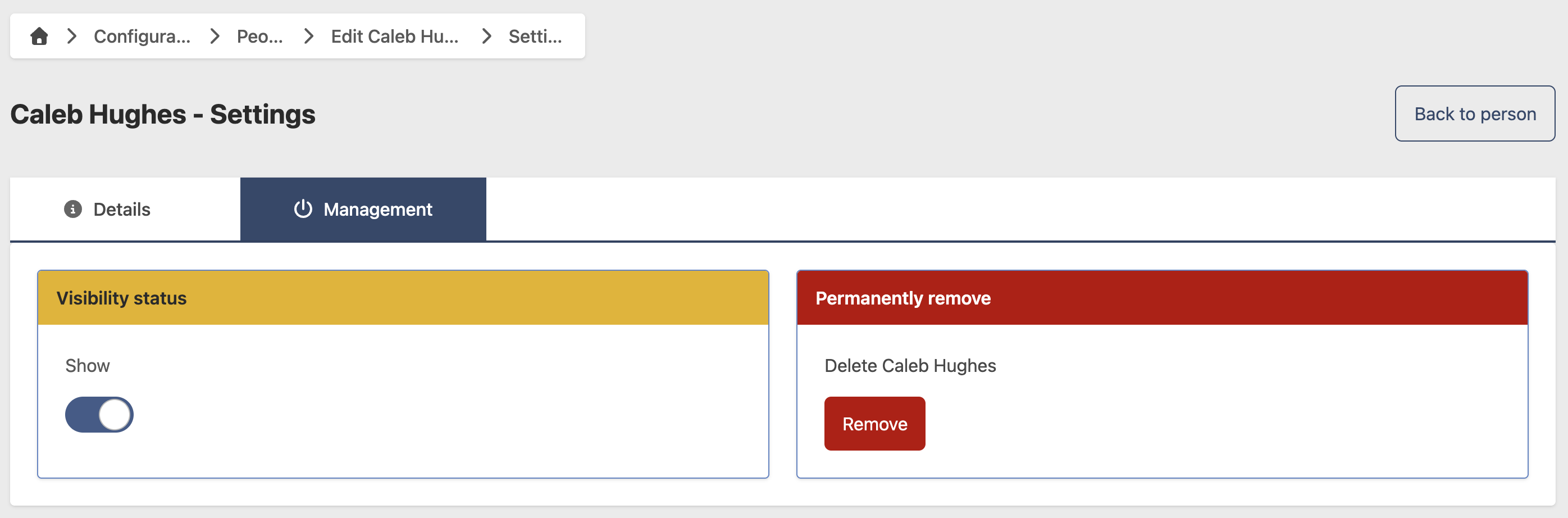
- Click Edit, then go to the Management tab
Hide a Person
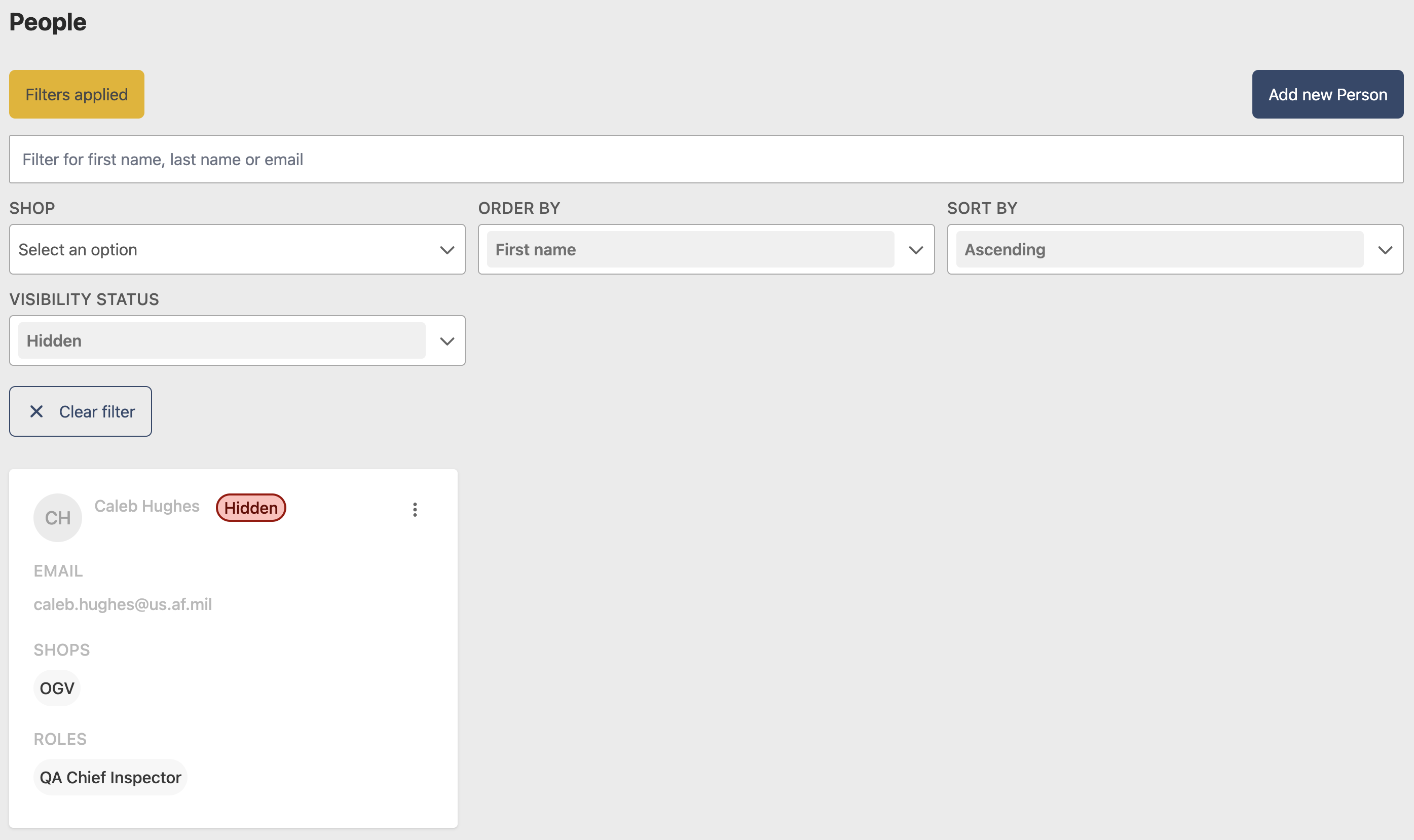
To temporarily hide a Person without deleting them, toggle Show/Hide to Hide. To restore visibility, filter by Hidden status, open the Person, and toggle Show/Hide back to Show.
Permanently remove a Person
caution
This action cannot be undone. Consider hiding the Person instead if you may need them in the future.
- Click Remove
- Click Yes to confirm